
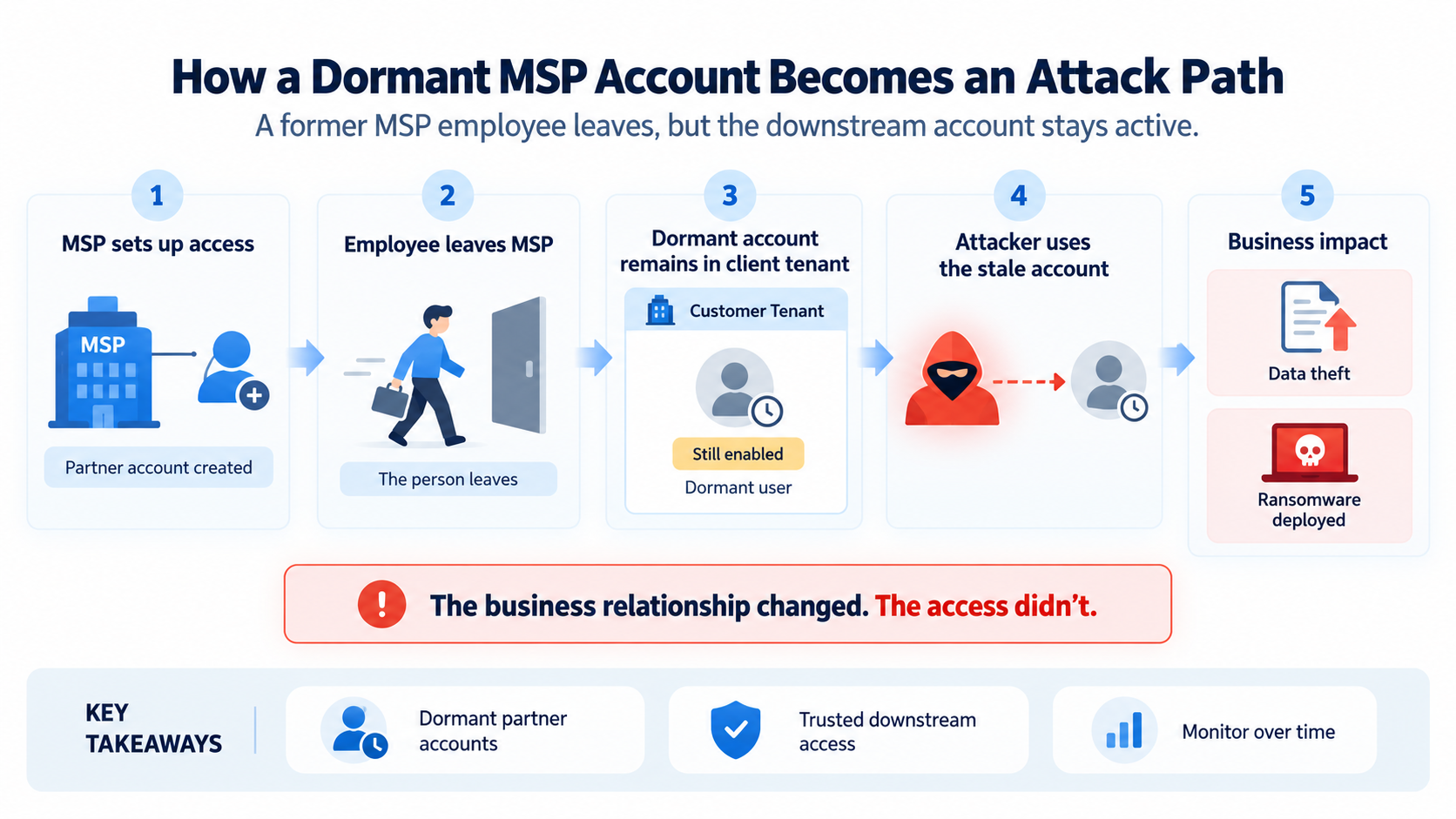
Earlier this year, attackers got into a client environment using the credentials of a former MSP employee. That person had left, but their partner account in the client tenant was still enabled and still privileged. The attackers used it to move through the environment, and it ended in a data breach and ransomware.
Dormant accounts are a security problem first. They are also a cost problem, because you are often paying for licenses assigned to people who no longer use them. In this post I’ll cover what counts as a dormant account, which ones actually matter, how to find them in Microsoft Entra ID, and how to keep them from piling up again.
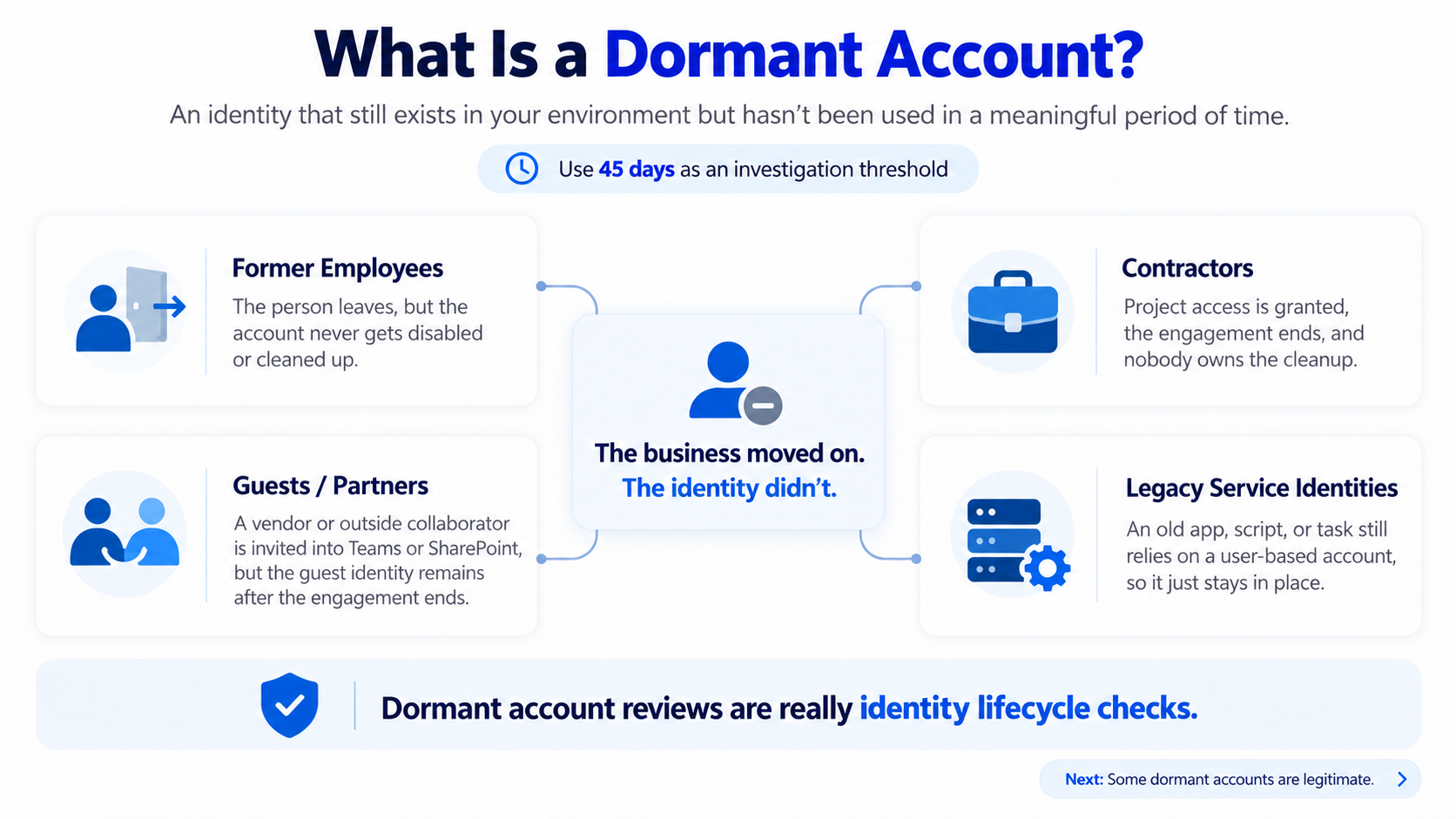
A dormant account is an identity that still exists in your environment but hasn’t been used in a meaningful period of time. I use 45 days without a sign-in as the threshold to start investigating. They usually come from four places:
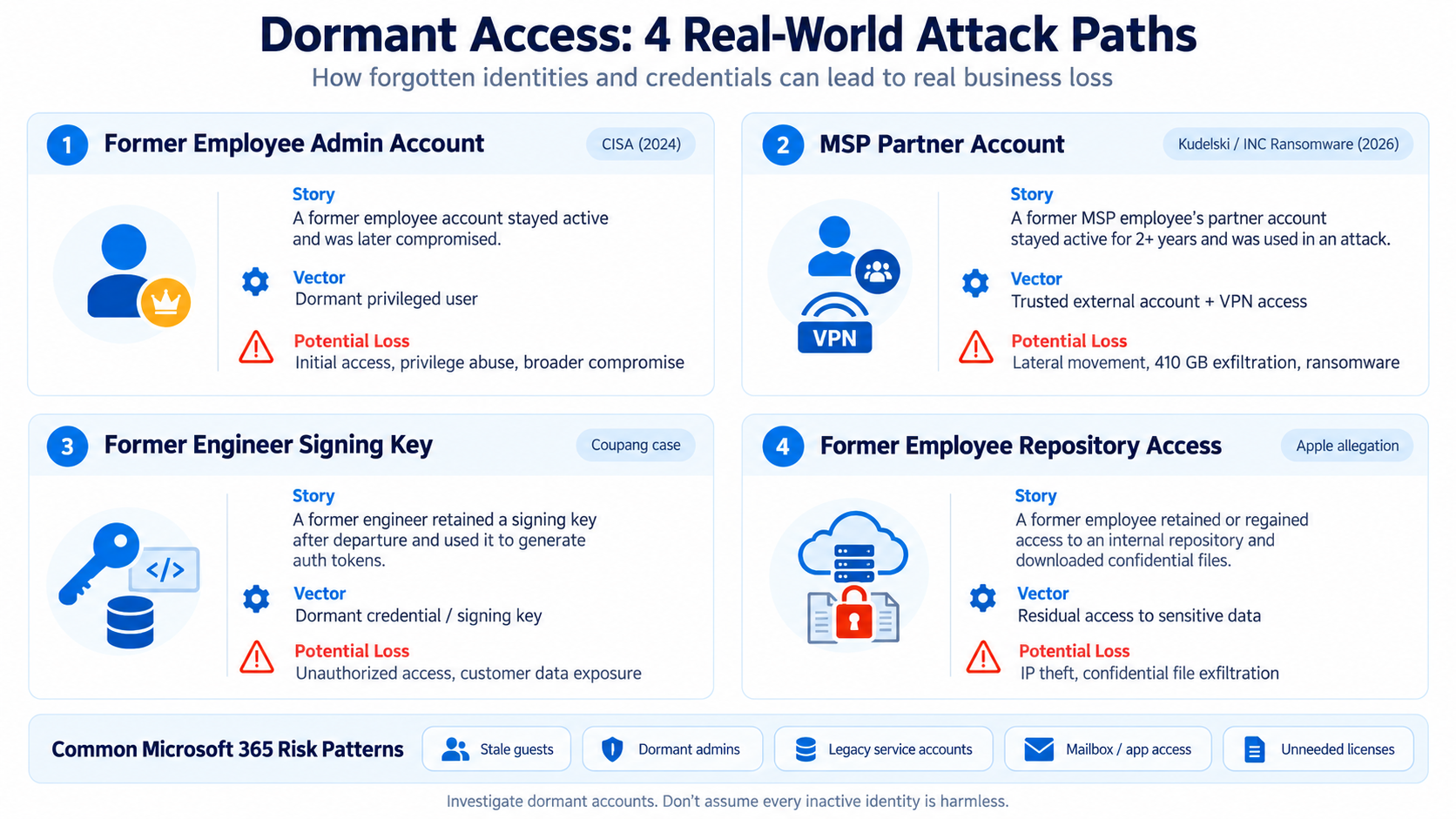
This isn’t theoretical. Forgotten identities and credentials keep showing up in real incidents.
Ref:
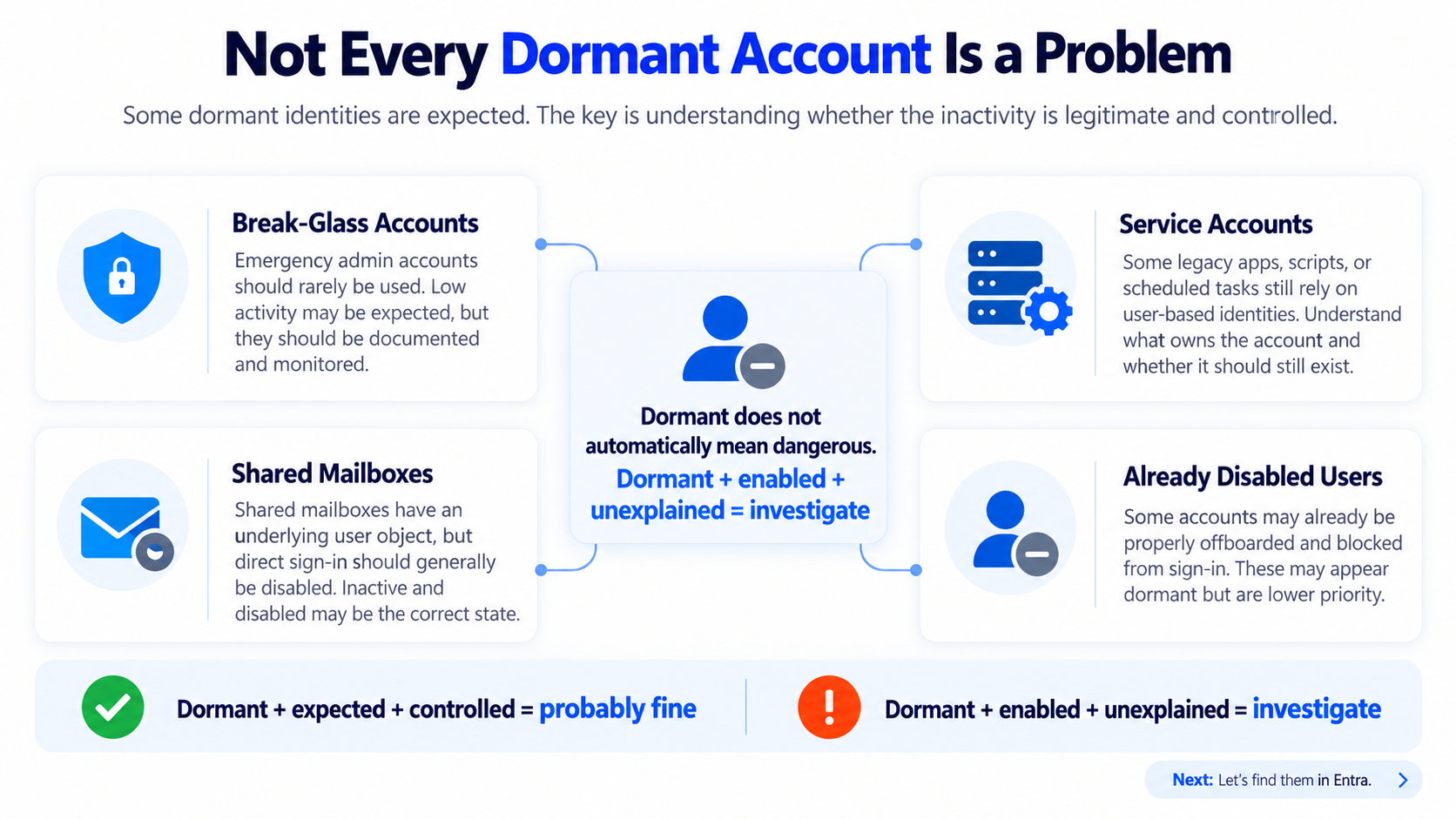
Some inactive identities are expected. The goal is to tell legitimate, controlled inactivity apart from the accounts nobody can explain.
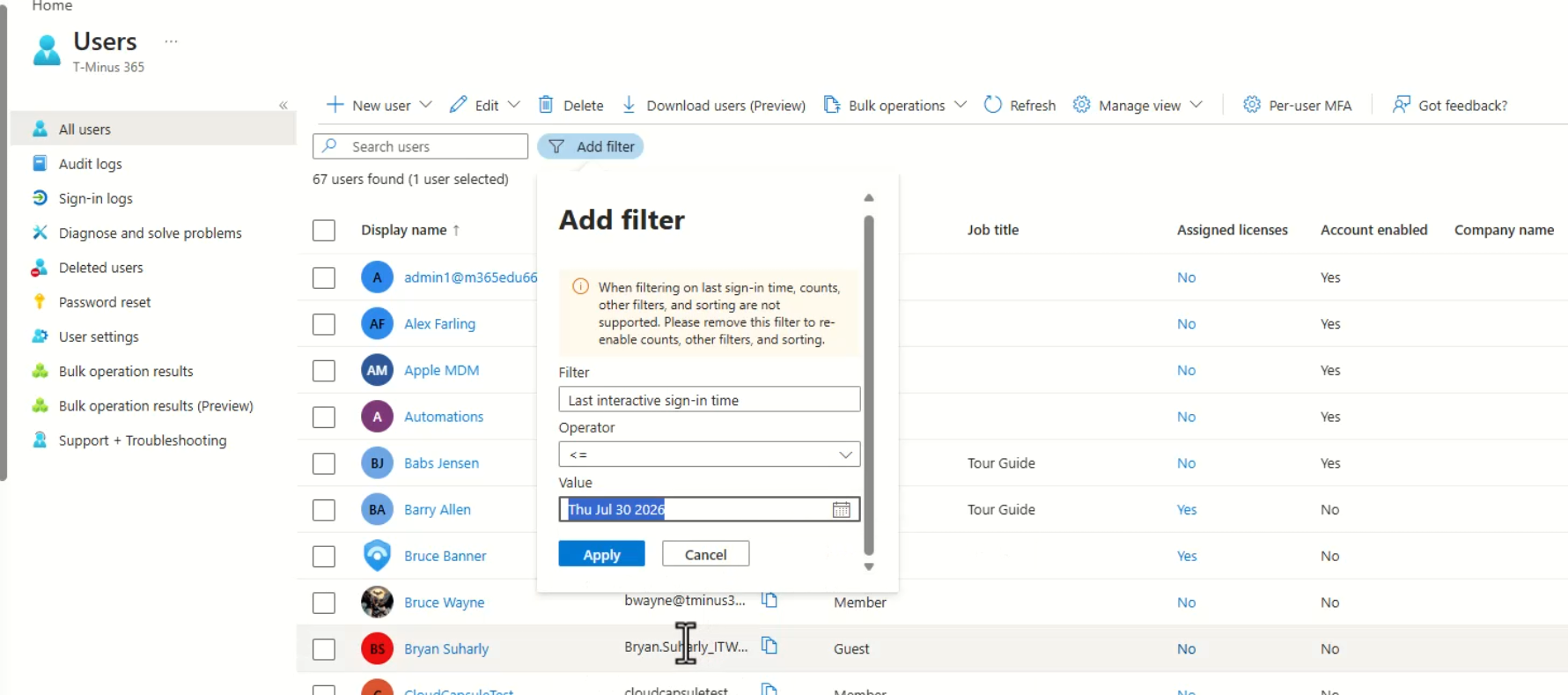
You can find dormant accounts in a single tenant right from the Microsoft Entra admin center, no scripts required.
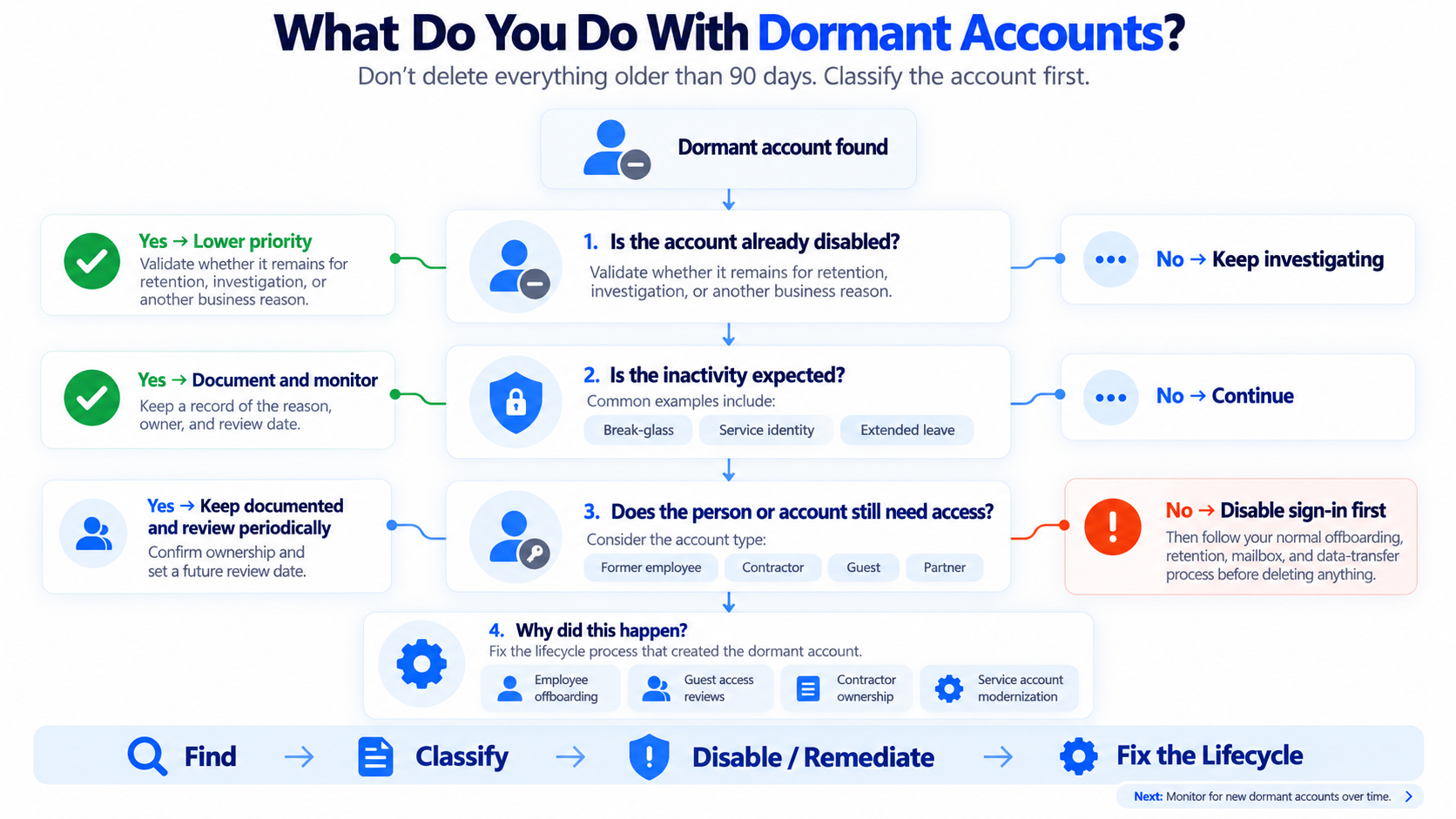
Don’t delete everything older than 90 days. Run each dormant account through four questions first.
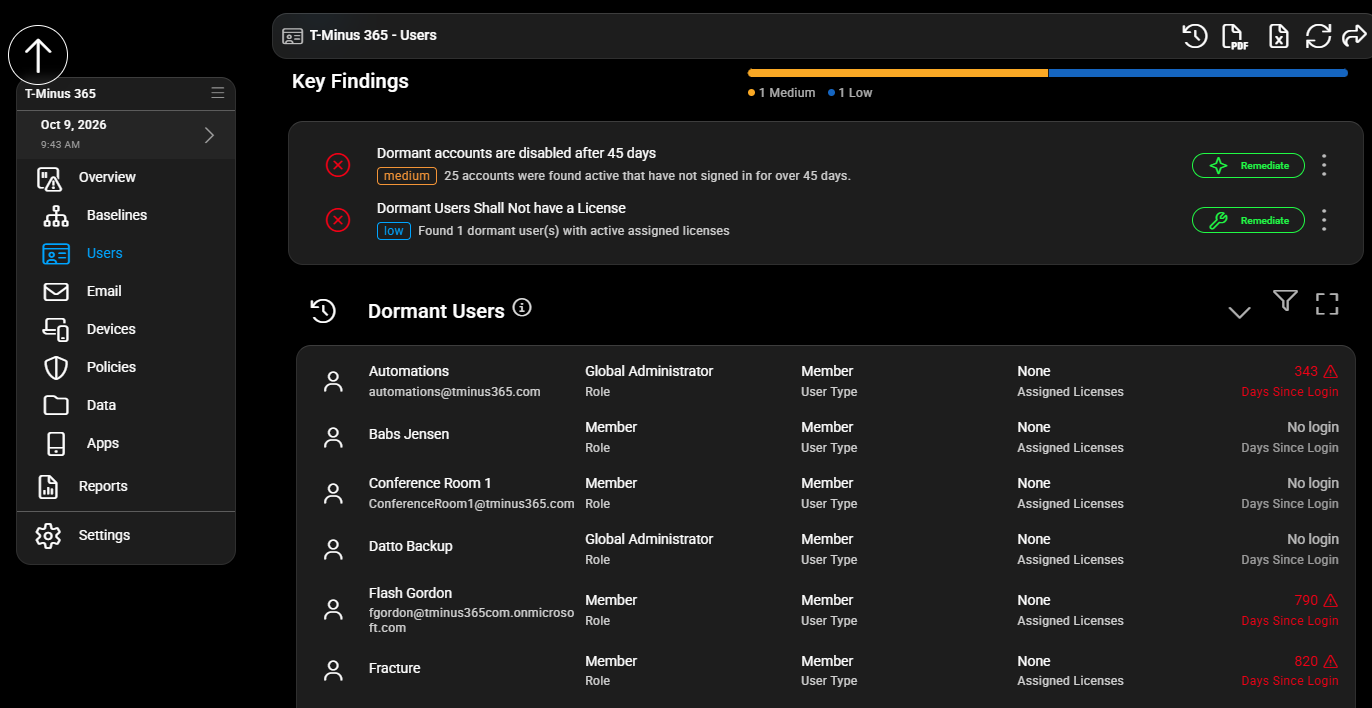
The Entra admin center works one tenant at a time. For an MSP managing dozens of clients, that doesn’t scale, and it’s the reason most tenants have more dormant accounts than anyone realizes. This is what we built CloudCapsule to handle.
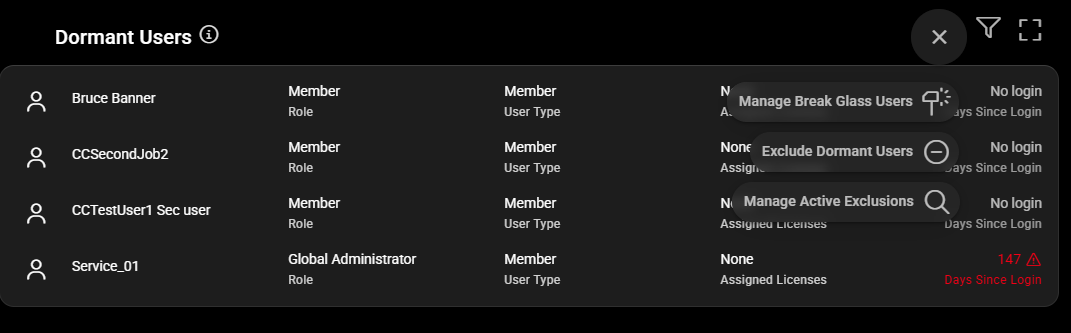
Approved Exclusions. Mark up the data for approved exclusions like conference rooms and break glass users.
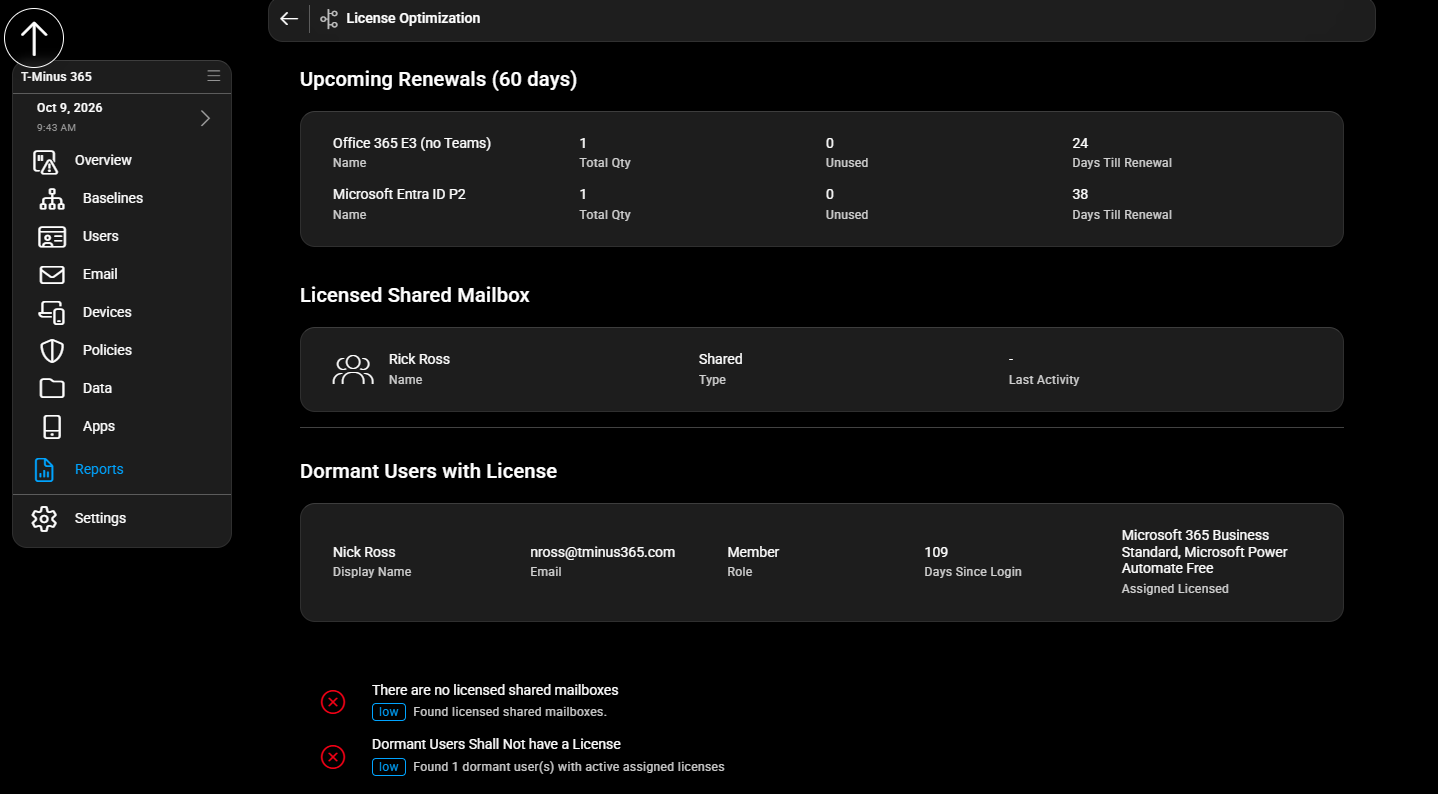
License optimization. See total users, unused licenses, and licensed shared mailboxes in one view, so cleanup ties directly to cost savings.
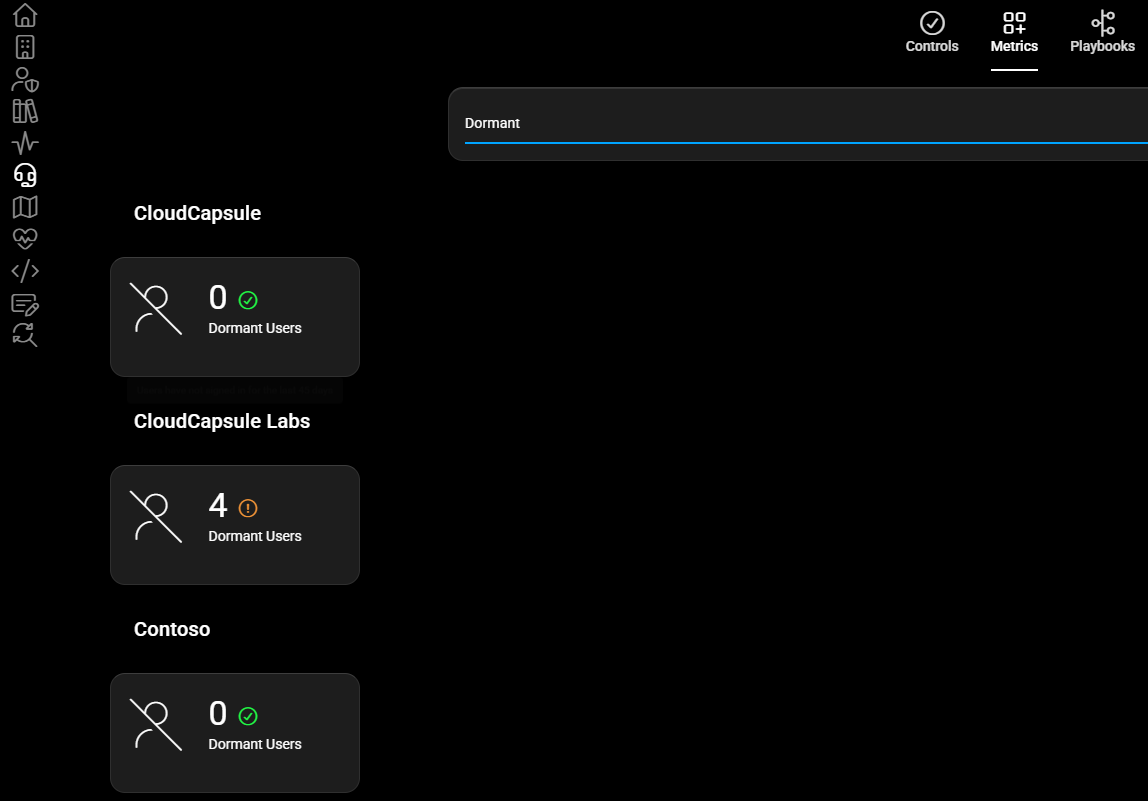
Cross-tenant search. Search a metric like dormant users and see the count for every client at once.
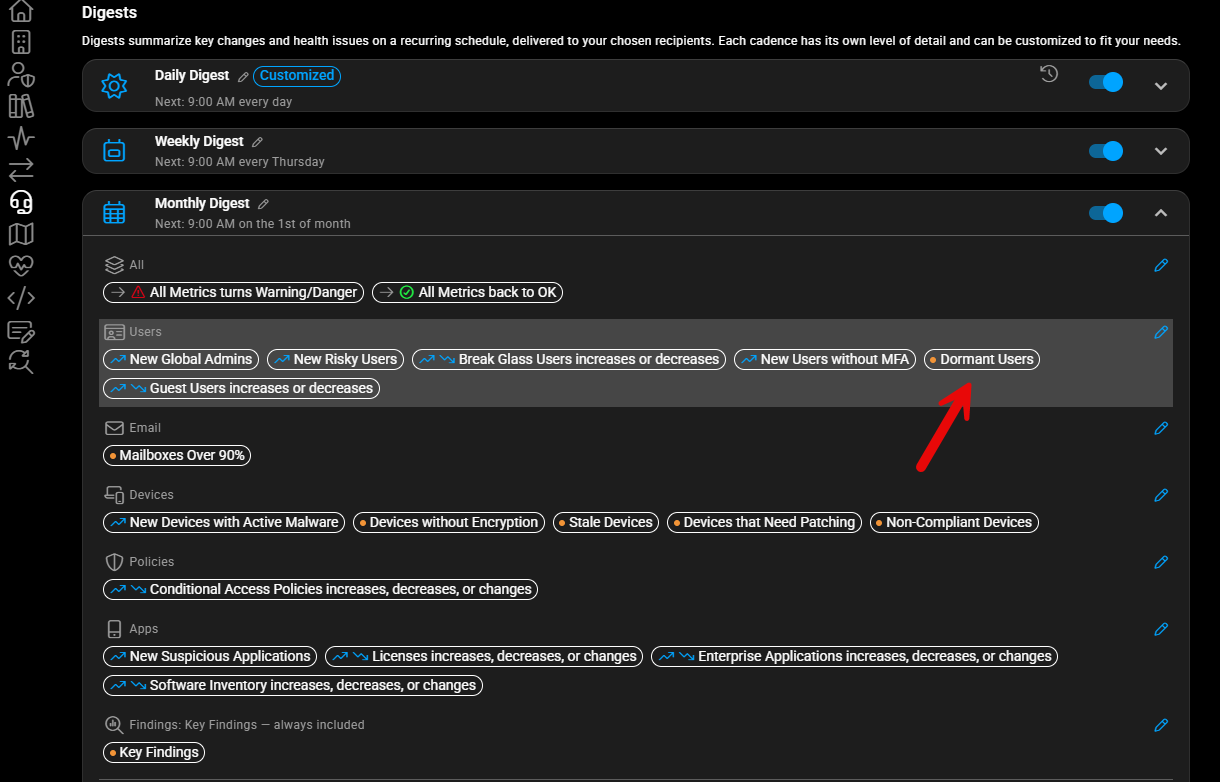
Scheduled digests. Daily, weekly, or monthly digests alert you when dormant users, new global admins, or break-glass changes show up.
Dormant accounts are an identity lifecycle problem with two costs: security exposure and wasted licenses. Find them, classify them before you delete anything, disable what isn’t needed, and fix the process that created them.
