

Microsoft quietly dropped Entra Backup and Recovery into Public Preview in March 2026.
Before this feature, Entra ID had no native rollback capability for most object types. A deleted security group was gone permanently, no recycle bin, no soft-delete window. A misconfigured Conditional Access policy meant a manual rebuild. A corrupted service principal meant starting from scratch. Your recovery toolkit was audit logs (which told you what happened but couldn’t undo it), screenshots if someone had thought to take them, and Graph API export scripts if your team had built them.
| Status: Public Preview |
| License: Entra ID P1 or P2 |
| Retention: 5-day rolling window (previous 5 days) |
| Setup: Zero configuration, runs automatically |
| Security: Tamper-proof, no admin can disable or delete |


Two Scenarios Where This Matters
- The Accidental Change
The most common recovery scenario for MSPs: a junior admin deletes the wrong group, a bulk user update script runs with bad data, or a CA policy gets modified during a change window and locks out a subset of users. These incidents happen fast and are usually caught within hours. That’s well within the five-day window, and the recovery path is now straightforward: browse to the backup, run a difference report, scope your recovery, restore.
- The Attacker Who Already Has a Foothold
The more dangerous scenario isn’t the accident, it’s the attacker who has already gained access and is quietly modifying your environment to maintain persistence such as disabling conditional access policies or making exclusions to them.
How this works
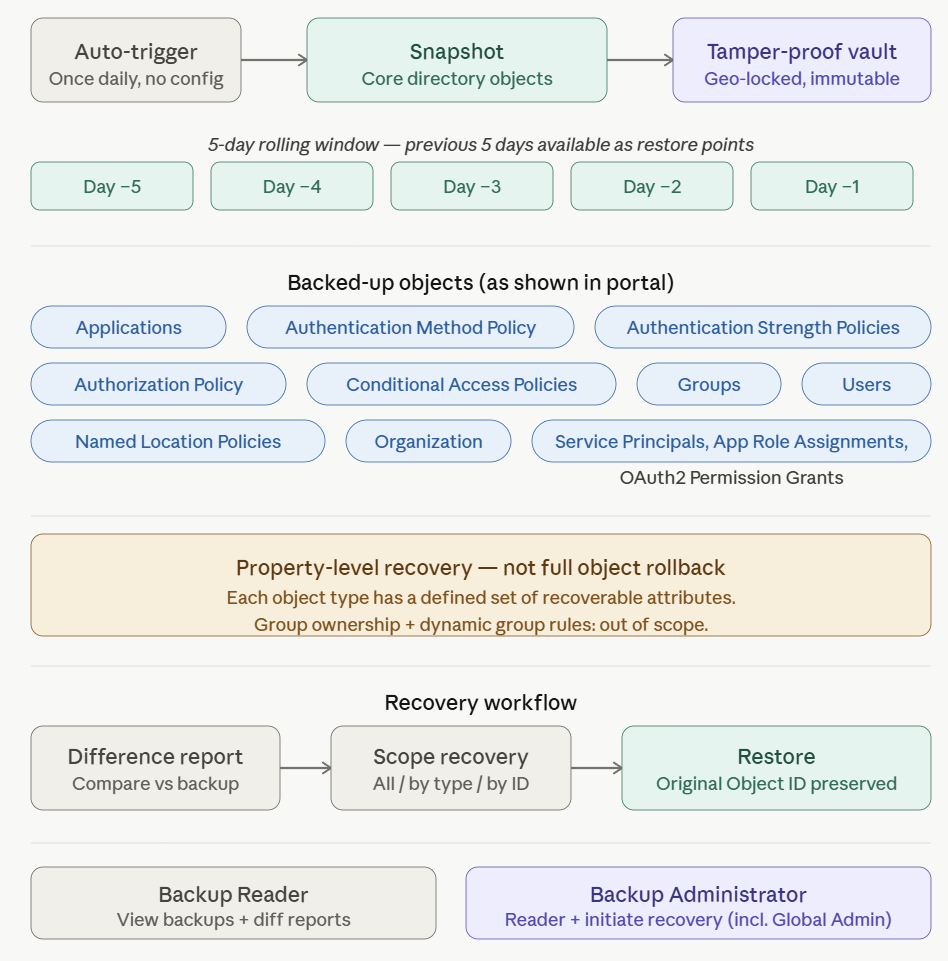
The following object types are selectable in the recovery portal, matching exactly what’s available in the admin center UI:
- Applications
- Authentication Method Policy
- Authentication Strength Policies
- Authorization Policy
- Conditional Access Policies
- Groups
- Named Location Policies
- Organization
- Service Principals, App Role Assignments, and OAuth2 Permission Grants (grouped as one recoverable unit)
- Users
One important precision point: this is property-level recovery, not a complete full-state rollback of every attribute on an object. Each object type has a defined set of recoverable properties. For groups, for example, you can recover DisplayName, Description, SecurityEnabled, and MailEnabled — but group ownership changes and dynamic group membership rules are explicitly out of scope. Review the supported objects and properties reference for the full breakdown before you rely on this in a recovery scenario.
How to initiate the Recovery Workflow
Step 1 — Browse your backup restore points
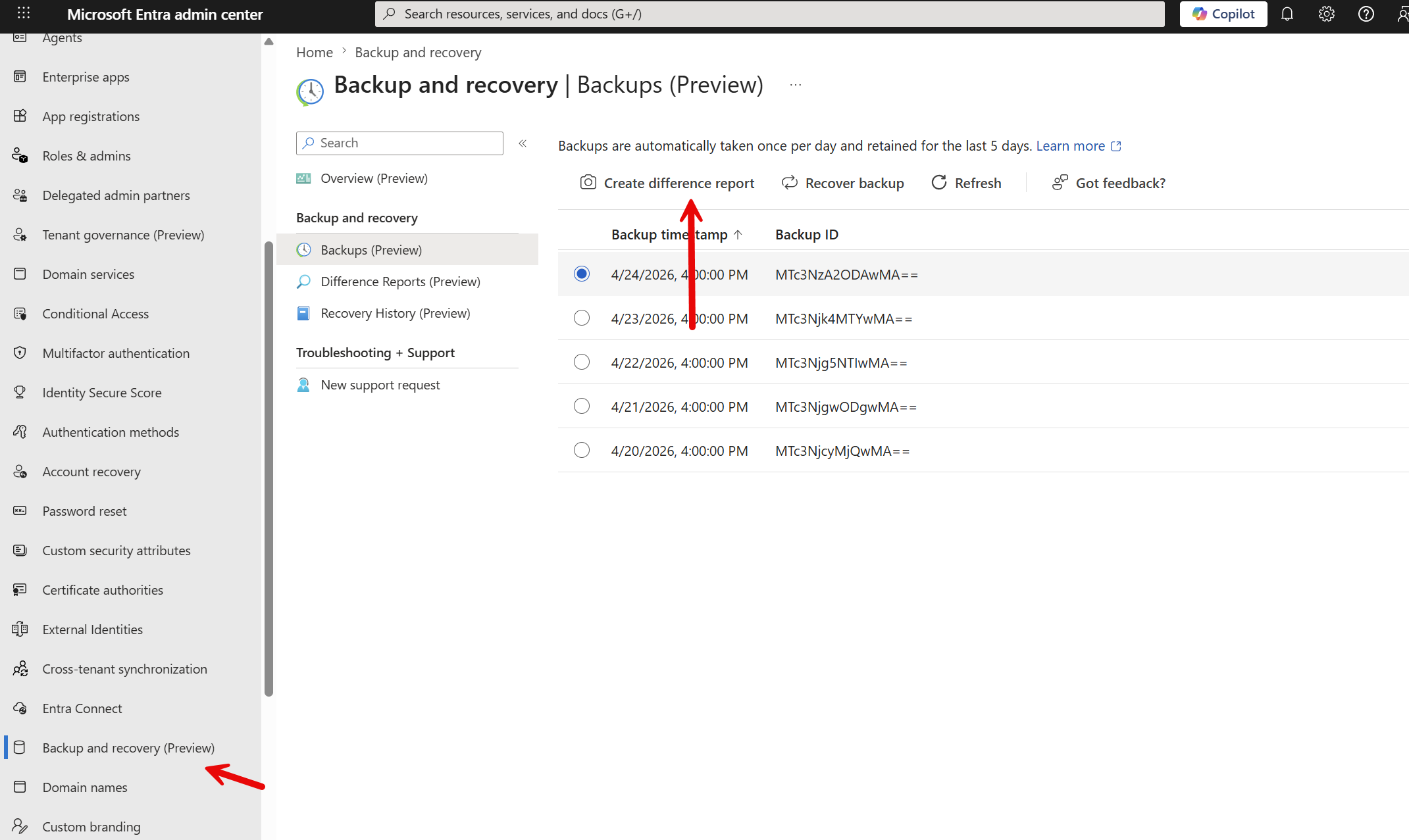
In the Entra admin center, navigate to Backup and recovery > Backups. You’ll see up to five restore points representing the previous five days. From you here can select one and create a difference report
Step 2 — Run a difference report (do not skip this)
Before recovering anything, generate a difference report comparing the selected backup against the current state of your tenant. This shows you attribute-level changes, exactly what changed, on which objects, and how. This is how you scope your recovery precisely and avoid rolling back legitimate changes alongside the ones you actually want to fix.
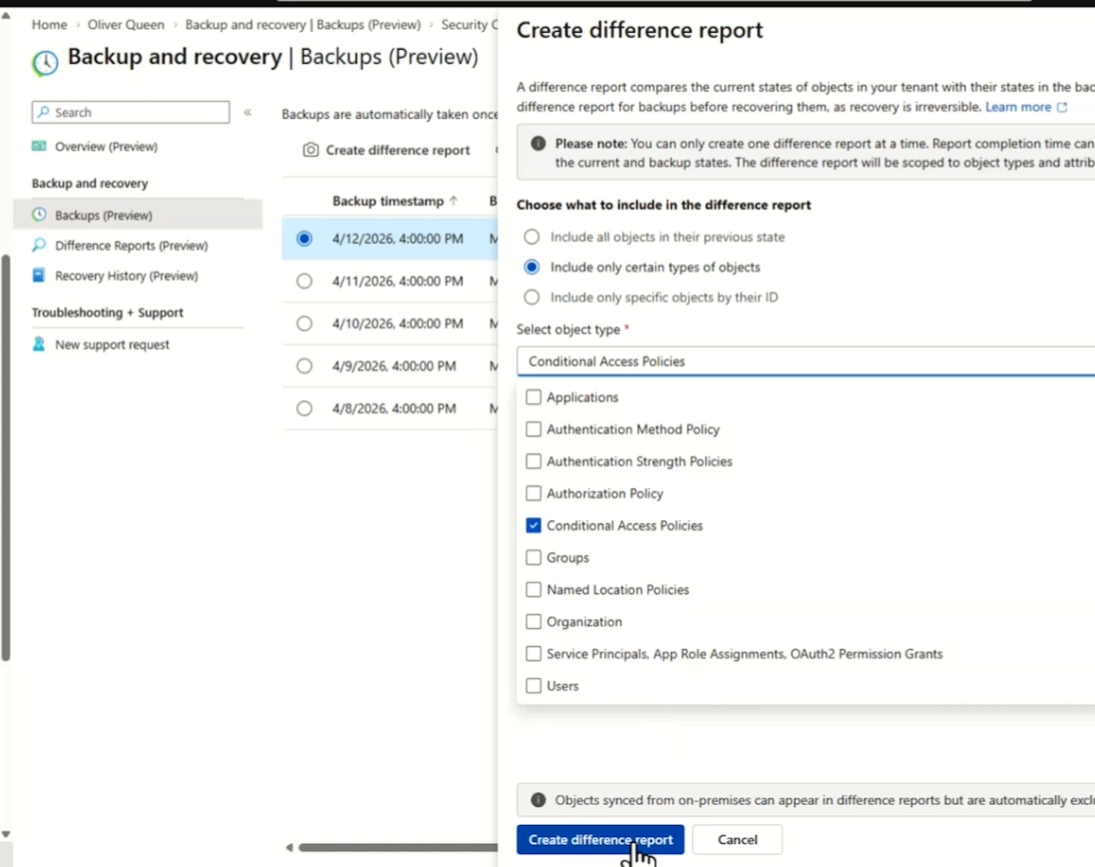
Preview caveat: difference report generation can take 25 minutes or more on larger tenants in preview. The first time you access a backup — whether through a report or recovery — the service loads that backup’s data, which takes fixed time regardless of tenant size. Subsequent operations on the same backup are faster. Run reports proactively in your environment so you know the wait time before you’re in a live incident.
Step 3 — Scope and trigger the recovery
Three recovery scope options are available:
- Recover all objects — full restore of all supported objects in the backup
- Recover by object type — scope to a specific category, e.g. Conditional Access Policies only
- Recover specific objects by Object ID — precision targeting of up to 100 individual objects
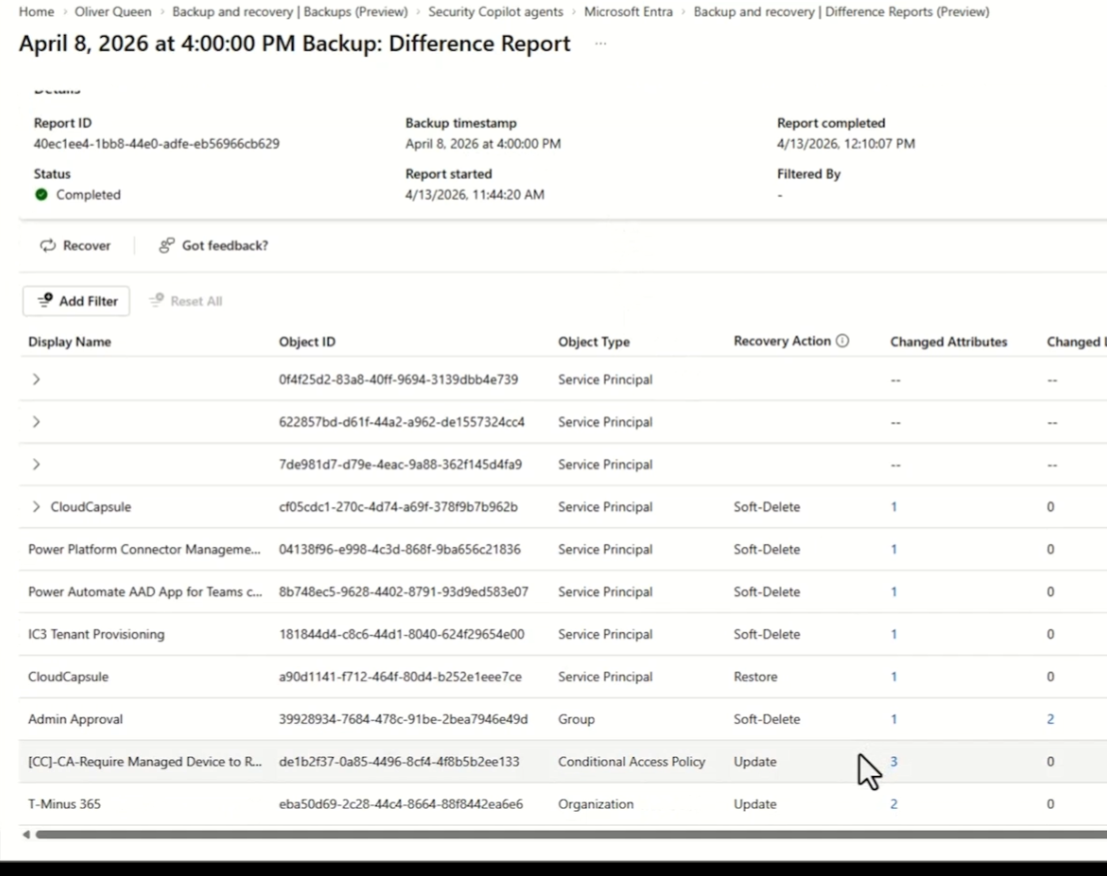
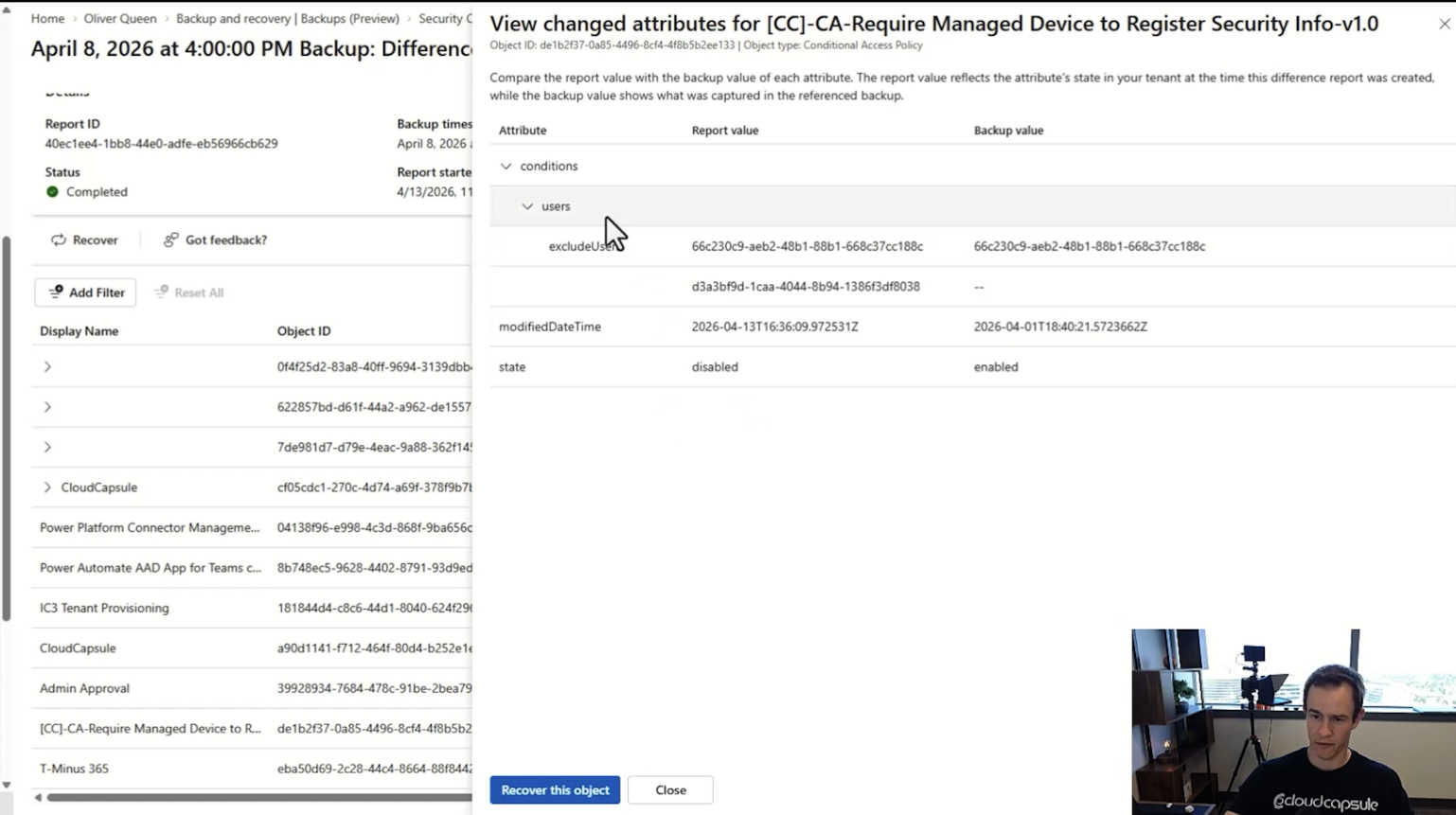
From here i could recover all items, all items by type (i.e groups, CA policies, etc.), or a specific object. Below, you can see an example of a conditional access policy that was disabled and had a new user added to the exclusions. I could recover this object and revert it back to what it was before this change:
All recovery actions are logged to your audit trail and appear in the Recovery History pane. Recovery history is retained for five days after job completion. Document your actions if you need a longer record for compliance or post-incident reporting.
RBAC: Who Can Do What
Two new roles have been introduced:
Role | Permissions |
Backup Reader | View backups and browse difference reports. Cannot trigger a recovery. |
Backup Administrator | Full access including initiating recoveries. Global Admin includes this role by default. |
Know the Limits
This is a meaningful feature. It’s also a preview, and there are real constraints worth being honest about with your team and your clients.
Hard-deleted objects: Cannot be recovered. Only soft-deleted or modified objects are in scope. |
Five-day limit: Changes undetected beyond the window cannot be recovered with this tool. |
Intune & Defender: Device configurations and Defender for Identity settings are not covered. |
On-prem / hybrid AD: Synced object changes appear in difference reports but are automatically excluded from recovery. A separate backup strategy is still required for on-prem AD. |
Property-level only: Recovery applies to supported properties, not a complete full-state object rollback. Review the supported properties list per object type. |
Preview report timing: Difference report generation can take 25+ minutes on larger tenants. This will ideally improve over time. |
This is still preview. Behavior may change before GA. For the full technical reference, see the Entra Backup and Recovery documentation and the supported objects and properties reference.