

After using Microsoft Copilot Cowork every day for a month, here’s my honest review, favorite workflows, pricing concerns, and whether it’s worth buying.
Microsoft Copilot Cowork Is the First Copilot Feature I Actually Want to Use
For the last two years, Microsoft Copilot has struggled to keep up with tools like ChatGPT and Claude. The biggest problem wasn’t the AI model. It was the experience. Most of the time, Copilot answered a question and then left the rest of the work up to you.
Copilot Cowork changes that.
I’ve been using it every day for the past month, including during Microsoft’s early access program. It is the first Copilot feature that has genuinely changed how I work. Instead of simply answering questions, it plans work, uses information from across Microsoft 365, and completes tasks while I focus on something else.
The catch is the pricing.
Microsoft introduced Copilot Cowork with a usage-based billing model built around Copilot Credits. While the product is impressive, the cost could make many small and medium-sized businesses think twice before adopting it.
In this article, I’ll show you:
- What Copilot Cowork actually does
- Four workflows that save me hours every week
- The prompts I use every day
- How Work IQ gives Copilot real business context
- Why Microsoft’s pricing model may be its biggest obstacle
Why This Is Different
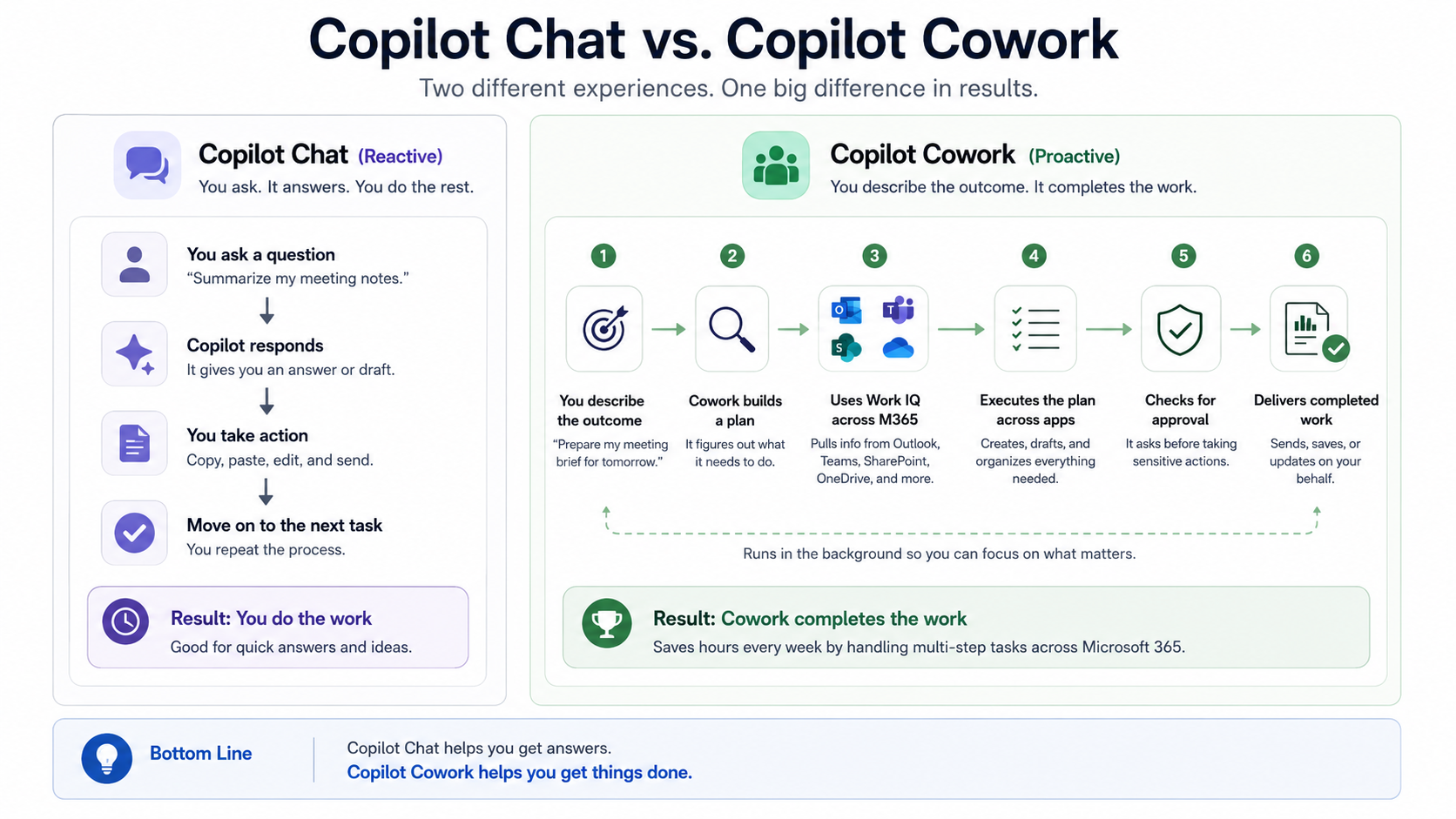
Most AI assistants work like a search engine.
You ask a question.
They give you an answer.
Then you start the next task yourself.
Copilot Cowork works differently.
Instead of asking it to write an email or summarize a meeting, you describe the outcome you want. Cowork builds a plan, gathers information from Microsoft 365, asks for approval when needed, and finishes the work across multiple apps.
That shift from answering questions to completing work is what makes Copilot Cowork so interesting.
Key Takeaway
Copilot Chat helps you think.
Copilot Cowork helps you finish work.
How Copilot Cowork Works
Every request follows the same basic pattern.
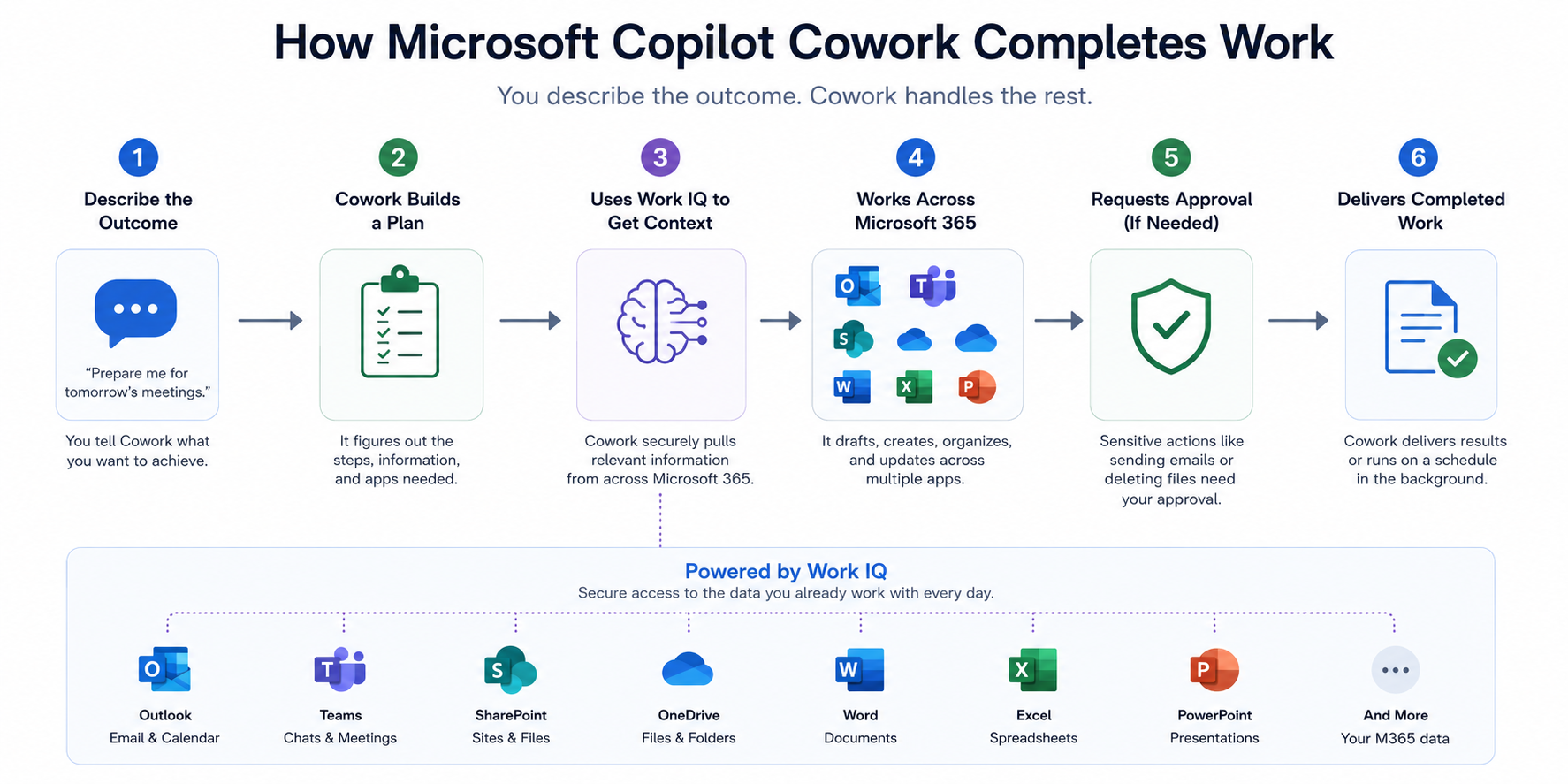
1. You describe the outcome.
“Prepare me for tomorrow’s meetings.”
“Organize my inbox.”
“Create battlecards from today’s sales calls.”
↓
2. Cowork builds a plan.
Instead of immediately generating text, it decides what information it needs and which Microsoft 365 apps it should use.
↓
3. It gathers context.
Cowork pulls information from your Microsoft 365 environment using Work IQ.
That can include:
- Outlook emails
- Calendar events
- Teams chats
- Meeting transcripts
- SharePoint files
- OneDrive documents
- Word, Excel, and PowerPoint files
↓
4. It completes the work.
Rather than giving you another prompt to copy and paste, Cowork can:
- Draft emails
- Create Word documents
- Build PowerPoint presentations
- Schedule meetings
- Organize files
- Save drafts
- Update documents
- Run scheduled jobs in the background
↓
5. It asks for approval when needed.
Sensitive actions like sending emails or deleting files require your approval first.
That keeps you in control while still automating the busy work.
Why This Feels Different
This is the first Microsoft AI product that consistently feels proactive.
Previous versions of Copilot helped me answer questions.
Copilot Cowork helps me finish tasks.
That’s a big difference.
Instead of sitting in another chat window waiting for my next prompt, it can run scheduled workflows every morning, monitor meeting transcripts, organize my inbox, and prepare follow-up emails while I focus on other work.
After using it for a month, I found myself opening Claude less often because Cowork already had access to my Microsoft 365 data. I didn’t need to upload documents or explain the context of every conversation.
That built-in context is powered by something Microsoft calls Work IQ, and it’s the feature that makes Copilot Cowork truly useful.
Copilot Cowork Workflows I Use Every Day
After using Copilot Cowork every day for the past month, these are the automations that have had the biggest impact on my productivity. None of them are particularly complicated on their own, but together they’ve changed how I start my day and handle routine work.
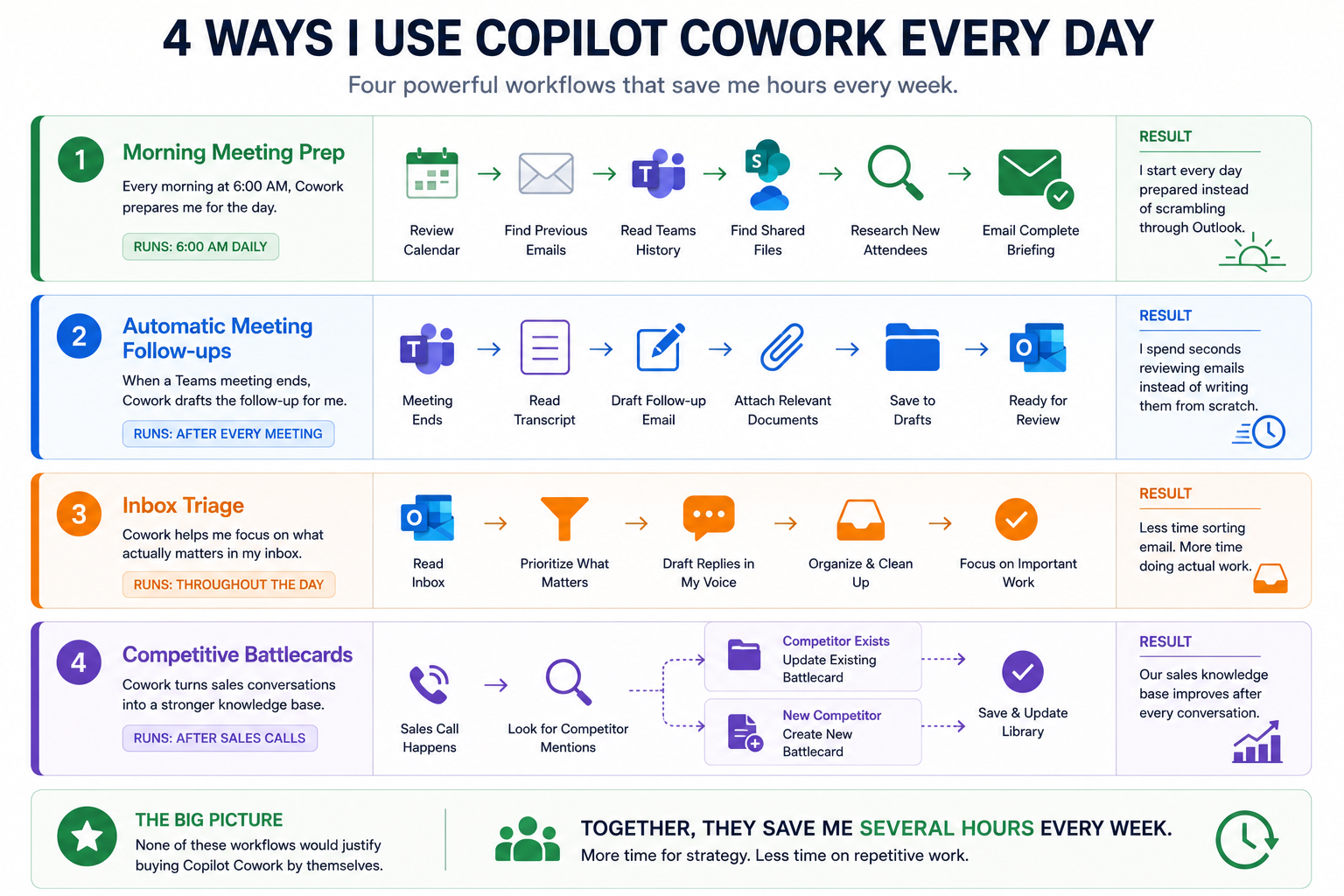
1. Morning Meeting Prep
Every morning at 6:00 AM, Cowork reviews my calendar, previous emails, Teams meetings, shared files, and even researches new attendees before emailing me a complete meeting brief.
Result: I start every day prepared instead of scrambling through Outlook.
2. Automatic Meeting Follow-ups
When a Teams meeting ends, Cowork reads the transcript, drafts a follow-up email in my writing style, attaches the documents I usually send, and saves everything to Drafts for review.
Result: I spend seconds reviewing emails instead of writing them from scratch.
3. Inbox Triage
Cowork identifies the emails that matter most, drafts responses in my voice, and helps me work through my inbox based on priority instead of simply reacting to new messages.
Result: Less time sorting email. More time doing actual work.
4. Competitive Battlecards
I created a custom skill that monitors sales call transcripts for competitor mentions. If a competitor already exists in our battlecard library, Cowork updates it. If not, it creates a new one automatically.
Result: Our sales knowledge base improves after every customer conversation.
Join my free skool community to get access to these skill MD files that help automate these workflows.
The Biggest Problem: Copilot Cowork Pricing
Everything I’ve shown so far made me genuinely excited about Copilot Cowork.
Then Microsoft announced the pricing.
That’s where things became much harder to recommend.
Unlike Microsoft 365 Copilot, Copilot Cowork doesn’t stop at the monthly license. Every workflow you run also consumes Copilot Credits, which are billed separately.
That means the more you automate, the more you pay.
For enterprises with clear AI budgets, that may be acceptable.
For small and medium-sized businesses, it introduces something many IT leaders dislike:
Unpredictable costs.
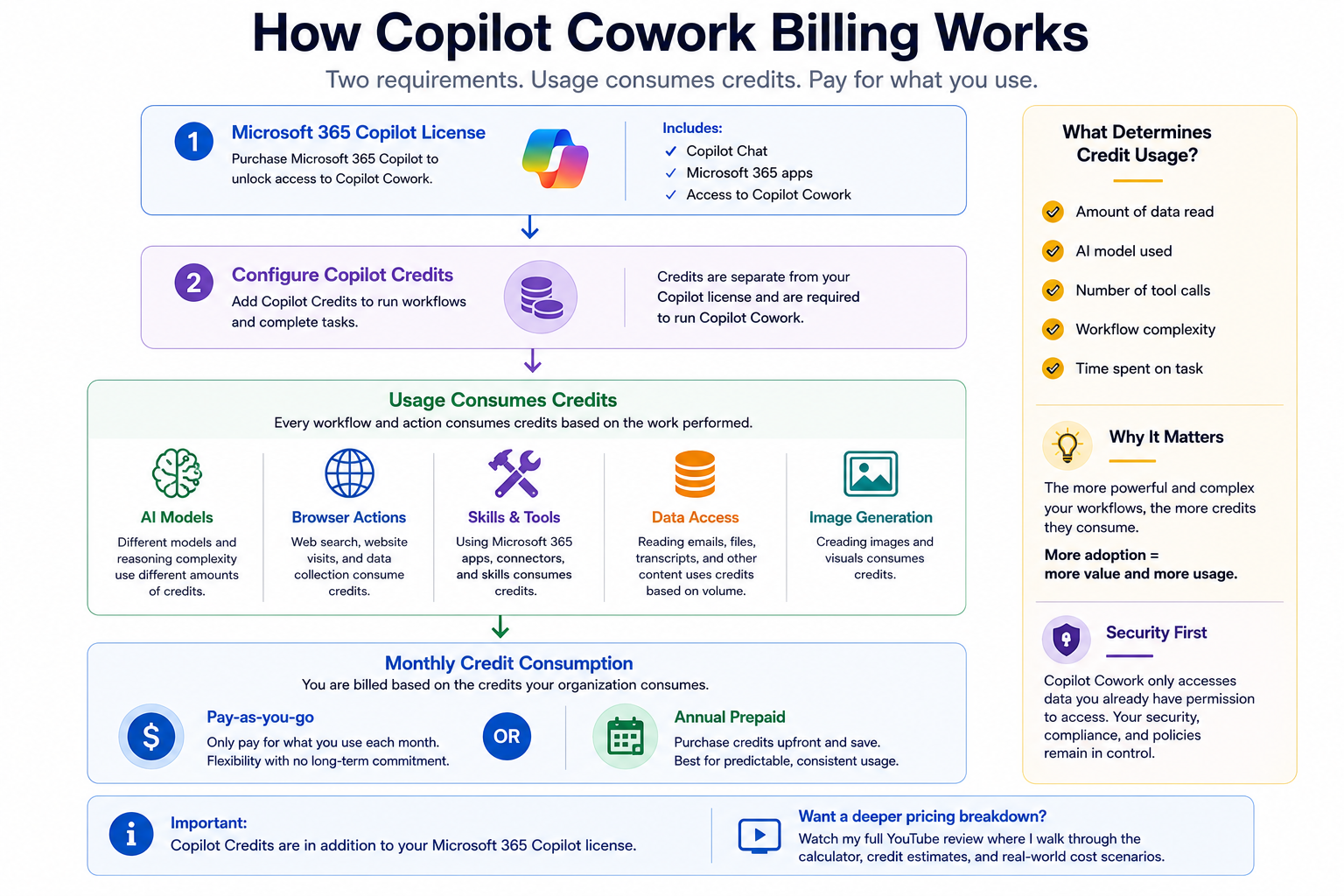
Using Copilot Cowork requires two things.
Step 1
Purchase a Microsoft 365 Copilot license.
This unlocks access to Copilot Cowork.
↓
Step 2
Configure Copilot Credits.
Every workflow consumes credits based on:
- AI model usage
- Tool calls
- Browser actions
- Image generation
- Workflow complexity
The credits are tracked separately from your Copilot license.
Why That Matters
The challenge isn’t paying for AI.
It’s predicting what your bill will be.
Every automated workflow has a different cost depending on:
- how much data it reads
- which AI model it uses
- how many Microsoft 365 services it accesses
- how much reasoning is required
A simple task may consume only a small number of credits. Each credit cost .01 cents.
A complex workflow that reads emails, meeting transcripts, SharePoint files, and researches the web can consume significantly more.
The more successful your deployment becomes, the more expensive it becomes.
Ironically, adoption is what increases the bill.
Should You Buy It Today?
If you’re an enterprise experimenting with AI agents, Copilot Cowork is worth evaluating today.
If you’re an SMB or an MSP deploying it across multiple customers, I’d recommend starting with a small pilot group first.
Measure the value.
Monitor credit usage.
Then decide whether the time savings justify the ongoing cost.
For me, the product is outstanding.
The pricing still needs work.
Final Verdict
Microsoft finally built something that feels less like a chatbot and more like a real coworker.
Work IQ gives it the context it needs to understand your business.
The automation capabilities are genuinely useful.
And for the first time, I found myself relying on Microsoft AI instead of switching to another tool.
The biggest obstacle isn’t the technology.
It’s the billing model.
If Microsoft can simplify pricing, Copilot Cowork has the potential to become one of the most valuable productivity tools in Microsoft 365.