

You’re probably excited about rolling out Microsoft 365 Copilot.
But here’s the uncomfortable truth most organizations discover too late:
Copilot doesn’t just use your documents.
It uses all of your organization’s documents.
That includes:
SharePoint sites no one remembers owning
Overshared folders from years ago
Legacy file share migrations
Content from 2017 that should’ve been archived or deleted
A Realistic (and Risky) Copilot Scenario
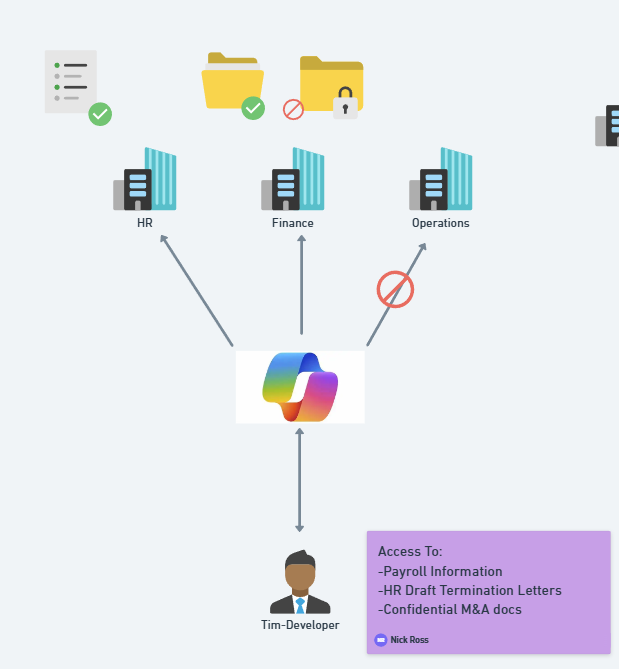
Imagine an employee asking Copilot:
“Help me prepare for my performance review.”
Totally reasonable request.
But Copilot scans the environment and accidentally surfaces a confidential HR documents:
-
Salary benchmarks
-
Disciplinary notes
-
Draft termination letters
-
Someone else’s compensation plan
Not because of a breach.
Not because of malicious intent.
But because the file lived in a SharePoint site that was unknowingly overshared years ago.
This is not hypothetical.
This is happening today.
And it’s exactly why organizations need SharePoint Advanced Management before enabling Copilot.
Copilot Is Only as Safe as Your Configurations and Policies
Copilot relies on Microsoft Graph to determine what a user can access.
If a user technically has permission, directly or indirectly, Copilot can use that content in its responses.
That includes:
Nested group permissions
Legacy “Everyone except external users” access
Broken inheritance at the file or folder level
Forgotten guest access
Most organizations have years of accumulated oversharing, especially in SMB and mid-market environments where governance historically wasn’t enforced.
Copilot doesn’t clean this up for you.
It amplifies it.
How Copilot Actually Surfaces Sensitive Data
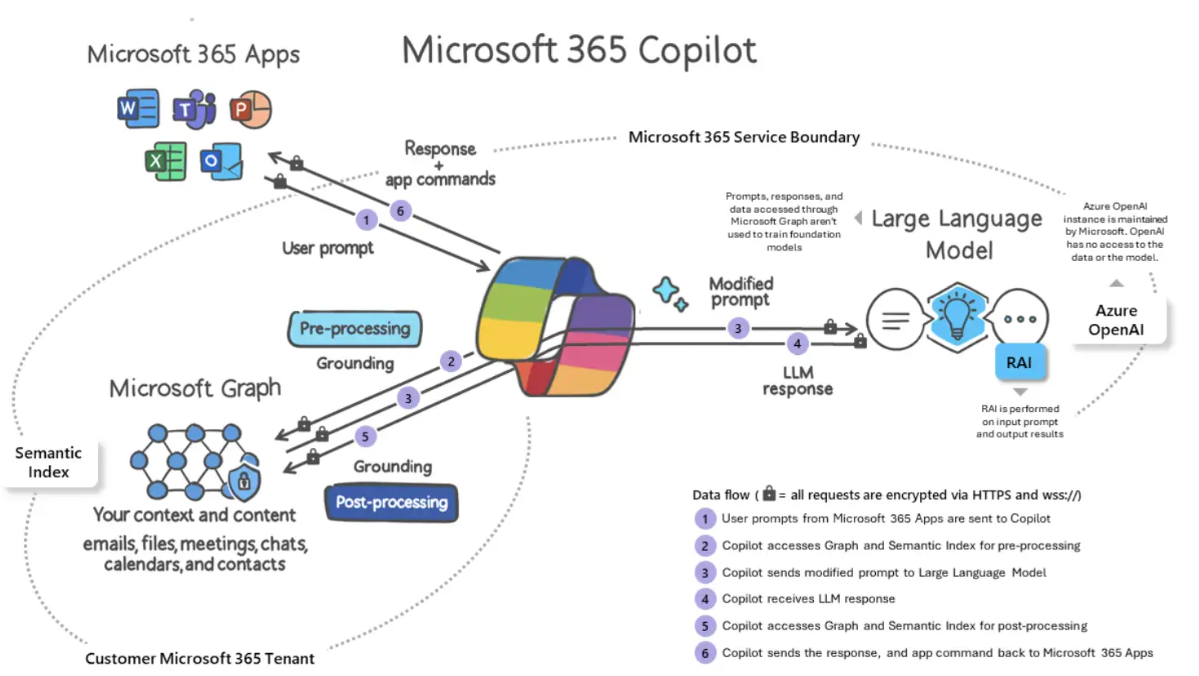
When a user prompts Copilot, it:
Evaluates the user’s identity
Pulls everything that user has access to
Combines data from:
SharePoint
OneDrive
Teams
Email
Meetings
Chats
If a user has access to a site, even indirectly, Copilot can surface that content.
This is how a developer like Tim can accidentally see payroll data:
Added to a nested group years ago
Granted access via “Everyone except external users”
Permissions inherited incorrectly over time
Copilot doesn’t know intent.
It only knows permissions.
SharePoint Advanced Management: Your Copilot Safety Net (well...part of it)
SharePoint Advanced Management is automatically included with Microsoft 365 Copilot.
No additional SKU required.
It gives you the governance layer Copilot assumes already exists but often doesn’t.
Let’s walk through the most critical features.
1. Oversharing & Data Access Governance Reports
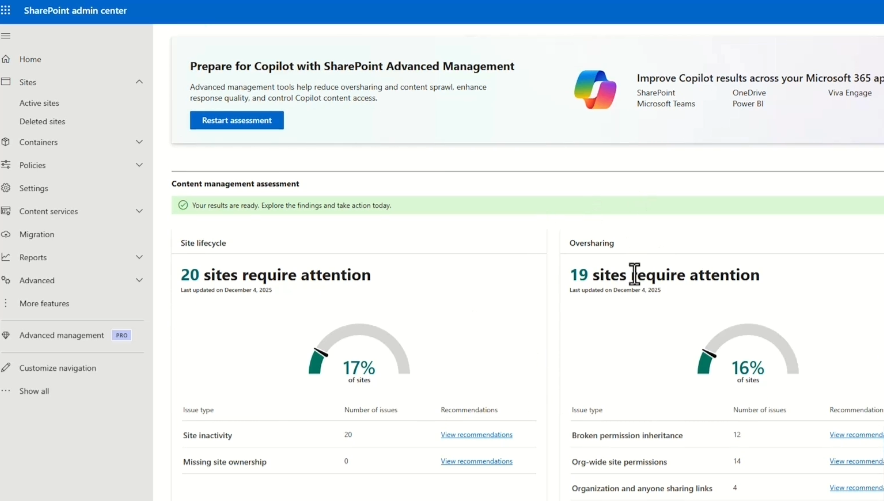
SharePoint Advanced Management lets you run assessments that surface:
Sites with broad access
Broken permission inheritance
Org-wide permissions
Anonymous and “Anyone” links
External user access
You get a 10,000-foot view of your data exposure.
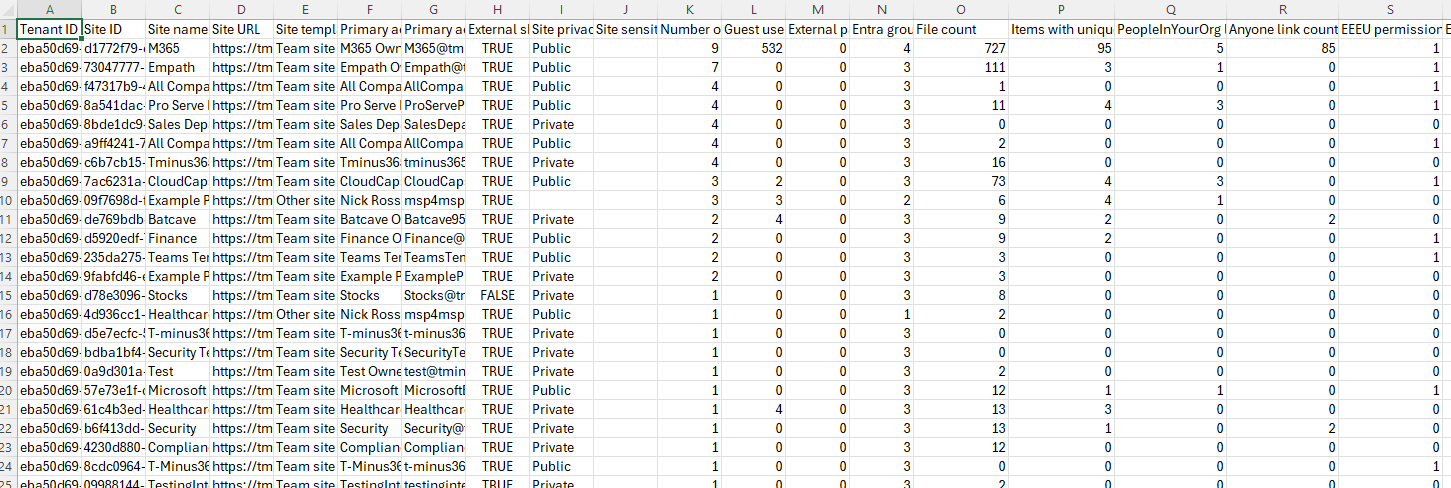
Exports include:
Site privacy
Sensitivity labels
External sharing status
Number of users and guests
Link types
Everyone Except for External User (EEEU) permissions
This allows you to quickly identify red flags like a Finance site that’s public and externally shareable.
Sample Export:
2. Restricting Copilot from Using High-Risk Sites
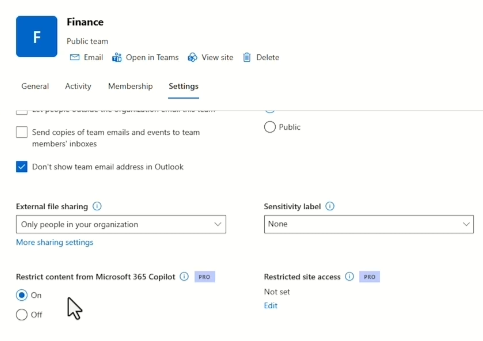
Some sites should never be part of Copilot’s knowledge base:
HR
Finance
Legal
M&A
Executive strategy
With SharePoint Advanced Management, you can exclude specific sites from Copilot indexing.
This acts as a stopgap:
You still allow Copilot usage
But prevent it from surfacing data from high-risk locations
You can reverse this later once governance improves
3. Restricted Site Access (Reset the Permission Model)
Some sites are simply too messy to fix incrementally.
Restricted Site Access allows you to:
Ignore all existing permissions
Define a single approved group
Start from a clean slate
Yes, it’s a breaking change, but sometimes that’s exactly what’s needed.
This is ideal for:
Legacy sites
Sites with heavy permission sprawl
High-risk data repositories
4. Blocking Downloads from SharePoint and OneDrive
Another critical control is preventing data from leaving the browser for users leveraged unmanaged devices.
With SharePoint Advanced Management, you can:
-
Block downloads on specific sites
-
Keep content view-only in the browser
-
Prevent local copies on unmanaged devices
This is especially important when Copilot links users to sensitive documents.
Copilot may surface the link but the data doesn’t escape.
5. Site Lifecycle Management (Governance That Runs Itself)
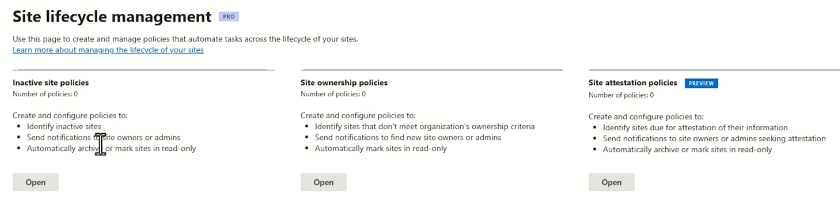
Stale content is dangerous content.
Site Lifecycle Management lets you:
Identify inactive sites
Notify owners
Enforce read-only access
Archive or clean up sites automatically
You can also:
Detect orphaned sites with no owners
Require periodic site attestation
Run policies in simulation mode before enforcing
This reduces risk and helps control SharePoint storage costs.
6. Change History and Ongoing Governance
Finally, SharePoint Advanced Management provides change history:
Site-level setting changes
Org-wide sharing changes
Governance actions over time
This gives you forensic visibility when:
Sensitive data appears in Copilot
Access unexpectedly expands
Governance decisions need auditing
Copilot exposure should never be a mystery.
Final Thoughts: Copilot Is Powerful, But Governance Comes First
SharePoint Advanced Management gives you the tools to:
Discover risk
Reduce oversharing
Govern access
Control Copilot indexing
Automate cleanup
Audit change
It’s not the only protection you need, but it is a foundational one.
In future posts and videos, I’ll dive deeper into:
Sensitivity labels
Data Loss Prevention
Trainable classifiers
Advanced Microsoft Purview protections
If you’re planning to deploy Copilot, start here first.
Copilot will only be as safe as the data you allow it to see.