

On March 11th, 2026, employees at Stryker began their day to blank screens. Within three hours, roughly 80,000 devices had been wiped across the company’s 61-country footprint. Not encrypted. Not ransomed. Erased.
No malware was involved. An Iran-linked hacktivist group compromised an admin account and used Microsoft’s own Intune remote wipe capability to erase the entire managed device fleet. Manufacturing halted. Shipping stopped. Surgeries were rescheduled.
One admin action caused all of it. No second checkpoint existed to slow it down.
Ref: Stryker attack wiped tens of thousands of devices, no malware needed
This post covers what those tools are, how to configure them, and where they still fall short for MSPs today.
What Is Multi Admin Approval?
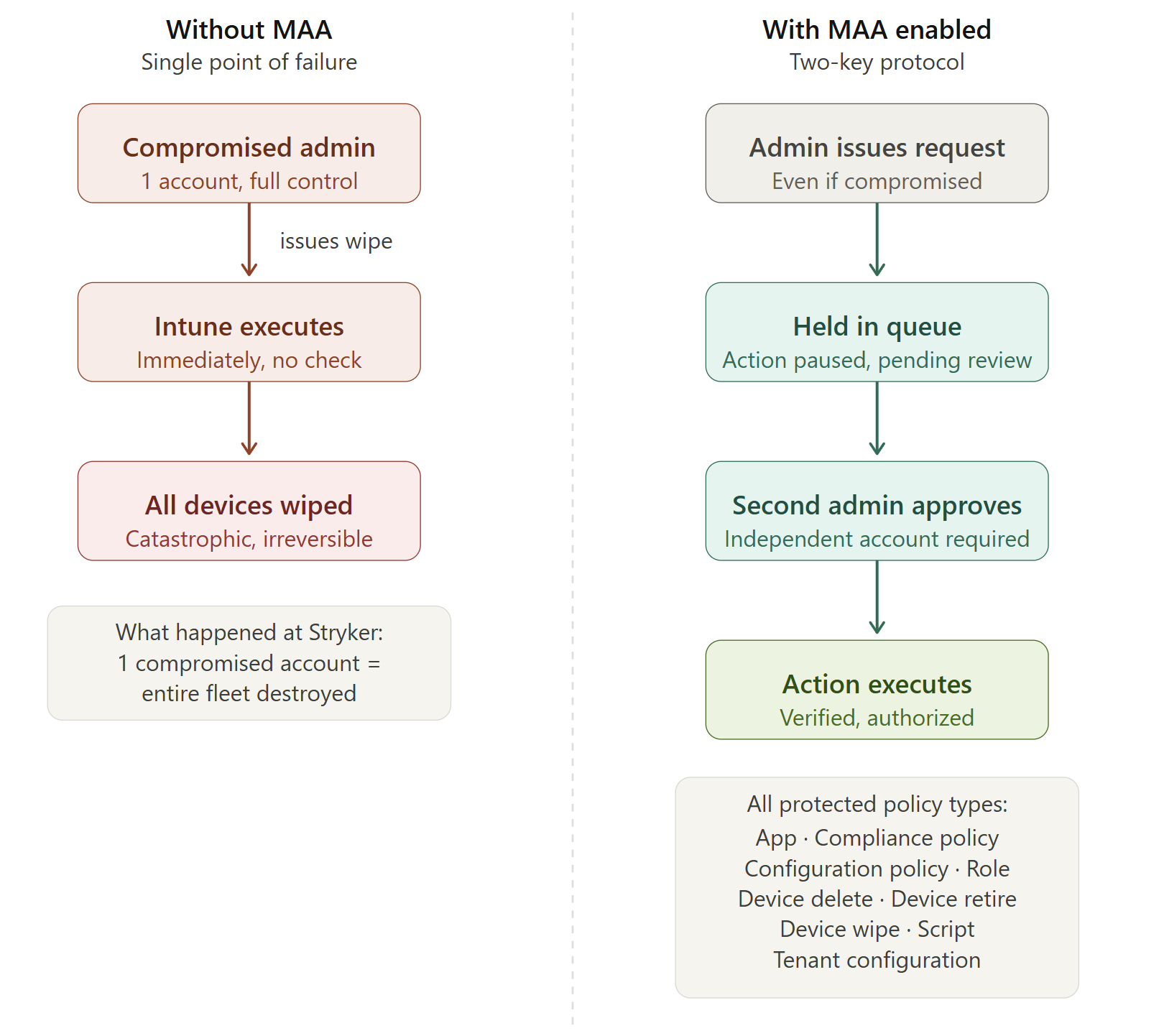
Multi Admin Approval (MAA) is a built-in Intune feature that Microsoft pointed to directly in response to the Stryker breach. It requires a second admin from a designated approver group to sign off before any sensitive action executes.
In a default Intune setup, one admin can wipe any device instantly. One compromised account is all an attacker needs. MAA breaks that single point of failure by holding the action in a queue until a separate approver reviews and approves it.
Think of it as a two-key protocol. One person initiates the request. A second person must turn their key before anything happens.
Ref: Use Multi Admin Approval in Intune – Microsoft Intune | Microsoft Learn
How to Configure Multi Admin Approval
You need at least two admin accounts and an Intune Plan 1 license to get started. Here is the full setup.
Step 1: Create an Approver Security Group
- In Entra ID, go to Groups, then New Group
- Group type: Security
- Name it clearly. Recommended: “Intune-MAA-Approvers”
- Add the accounts that will serve as approvers. Use dedicated security admin accounts, not day-to-day tech accounts
- Click Create
Step 2: Navigate to Multi Admin Approval
Intune Admin Center > Tenant Administration > Multi Admin Approval > Access Policies > Create
Step 3: Create a Policy for Device Wipe
- Name the policy, e.g. “Protect – Device Wipe”
- Profile Type: Device actions
- Click Next
- On the Approvers page, click Add Groups and select your “Intune-MAA-Approvers” group
- Click Next, then Submit for Approval
Step 4: Test the Workflow
Log in as a standard admin and attempt to wipe a test device:
Devices > [Select device] > Wipe
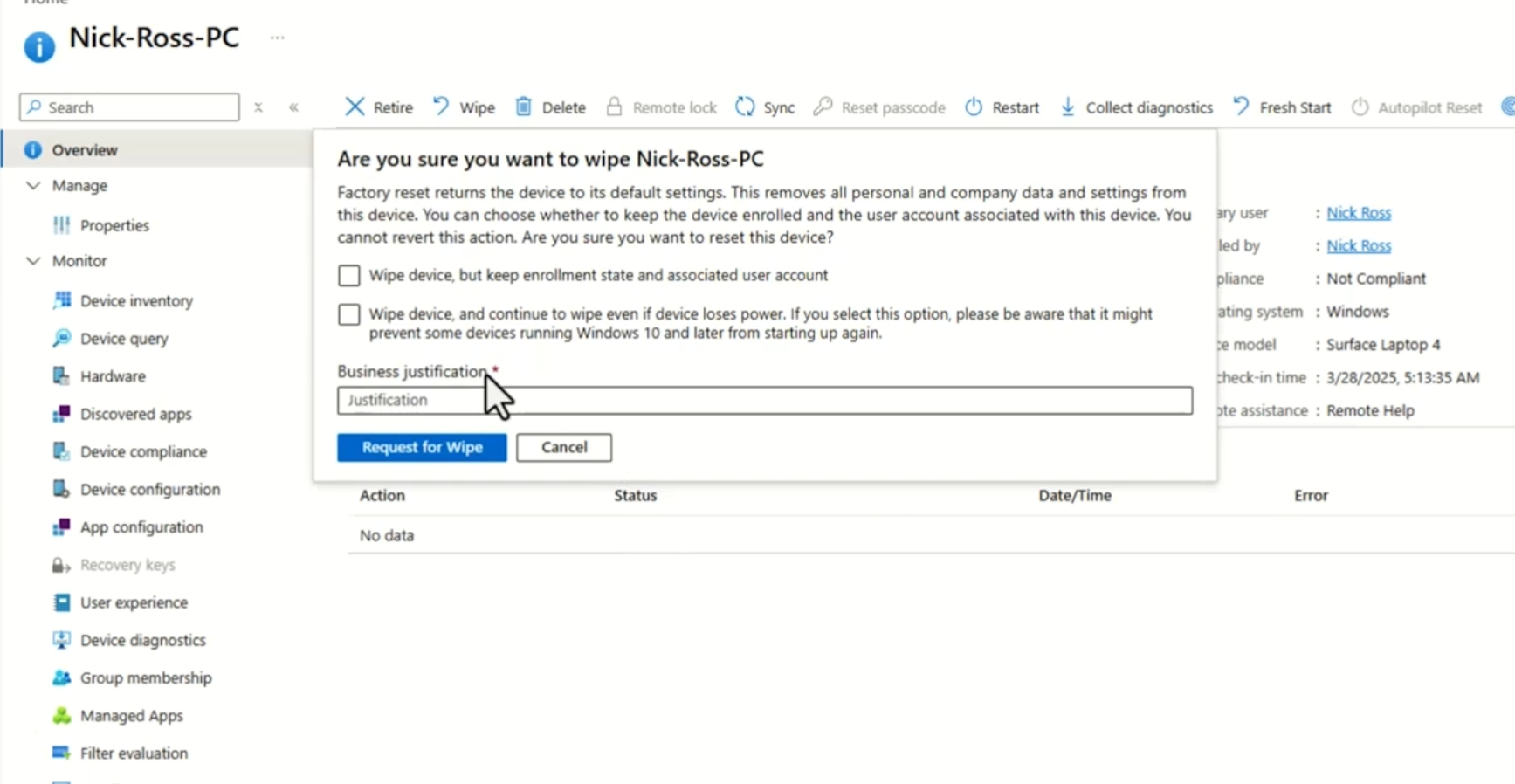
You will now see a Business Justification field instead of an immediate wipe prompt. Fill it in and submit. Note: allow a few minutes for the policy to propagate in your environment before testing.
Switch to your approver account and go to:
Tenant Administration > Multi Admin Approval > Received Requests
Review and approve the request. Once approved, the original requester must return to their request and click Complete to finalize the action. The approver and the executor are two distinct steps by design.
Where Multi Admin Approval Falls Short
MAA is a meaningful control, but it has two gaps that every MSP needs to understand before deploying it.
Gap 1: GDAP Bypasses MAA
If you are an MSP using GDAP to access customer Intune environments, actions performed through those delegated permissions currently bypass Multi Admin Approval entirely. A technician using a GDAP-delegated Intune Admin role to wipe a device in a customer tenant will not trigger the MAA approval flow. The action executes immediately.
This means the security of your customers’ Intune environments depends directly on how well you protect your own MSP tenant and the accounts holding those GDAP relationships.
Even outside this gap, MAA presents a structural challenge for MSPs. The approval workflow requires an account within the customer tenant to act as the approver. Most MSPs do not operate that way. This is what makes the alternative mitigations below more practical for MSP environments.
Gap 2: A Global Admin Can Route Around MAA
If an attacker already has Global Administrator access, they can create a new admin account, add it to the approver group, and use it to approve their own requests. MAA assumes the approval group has not been compromised. Once an attacker reaches GA level, that assumption breaks.
This would require the attacker to understand MAA and take extra steps to configure it, which does slow them down. But it is not a reliable barrier if the identity perimeter has already been breached.
MSP Recommendations: Layering Your Defenses
1. Enable Multi Admin Approval
If you are a direct customer tenant, configure MAA this week. Cover device wipes, scripts, apps, and configuration policies at minimum. This is Microsoft’s direct recommendation following the Stryker breach.
For MSPs, enable MAA in your internal tenant and encourage customers to enable it in theirs. Understand the GDAP gap, but do not let it stop you from deploying a control that still adds meaningful protection for direct tenant actions.
2. Implement PIM in Your MSP Tenant
Privileged Identity Management (PIM) addresses the root cause of the Stryker attack: standing privileged access. Your technicians should not have permanent Intune Administrator or Global Admin access in your MSP tenant. That tenant connects to every customer environment you manage via GDAP. One compromised tech account with standing GA access is a single point of failure for your entire customer base.
With PIM for Groups configured, technicians request elevation only when needed, for a defined time window, with MFA or approval required to activate. When the window closes, access is removed. A compromised account at 2 AM on a Saturday inherits low privileges, not access to every customer you manage.
Full Article: Secure Your GDAP Access with Just-in-Time Permissions
3. Govern Your Break Glass Accounts
Every tenant needs break glass accounts: emergency-only admin credentials for when normal access paths fail. Most organizations manage these poorly. Break glass accounts should meet these requirements:
- Cloud-only. Not synced from on-prem AD and not a federated identity. These accounts need to work even if your hybrid infrastructure fails.
- Excluded from Conditional Access. At least one break glass account must bypass your CA policies so it remains accessible when everything else is locked down.
- Monitored with sign-in alerts. Configure audit log alerts to fire immediately any time a break glass account authenticates. Any use outside a declared emergency is worth investigating.
Full Article: Best Practices for Break Glass Accounts
The Bottom Line
The Stryker attack required no malware, no zero-day, and no sophisticated tradecraft. One compromised admin account and a platform configured with no second checkpoint was enough to wipe 80,000 devices in three hours.
Multi Admin Approval, PIM, and proper break glass governance are all available to you today. None of them require new budget. They require configuration and the discipline to implement them before an incident forces your hand.