

An employee opens Claude on their laptop. It is free, it is fast, and within ten minutes they have pasted in a contract, a financial summary, and a list of customer records, all because they are trying to get their job done. No audit trail. No admin visibility. And depending on their account settings, that data may be feeding AI model training.
Here is the good news. Claude has some of the most robust enterprise security controls of any AI platform on the market today. SSO, SCIM provisioning, admin governance, workspace isolation. It is all there. The problem is not Claude. The problem is the gap between what is available and what most organizations are actually running.
This guide closes that gap. If you are an MSP managing client environments, or an IT admin rolling Claude out internally, these are the highest-impact controls you can put in place today.
In this guide:
- Why your plan tier determines your security posture
- Locking in data governance from day one with a paid account
- Configuring SSO and domain capture so users cannot go rogue
- Disabling the high-risk Claude products from the admin console
- Governing the API and locking down workspaces
Why the Plan Tier Determines Everything
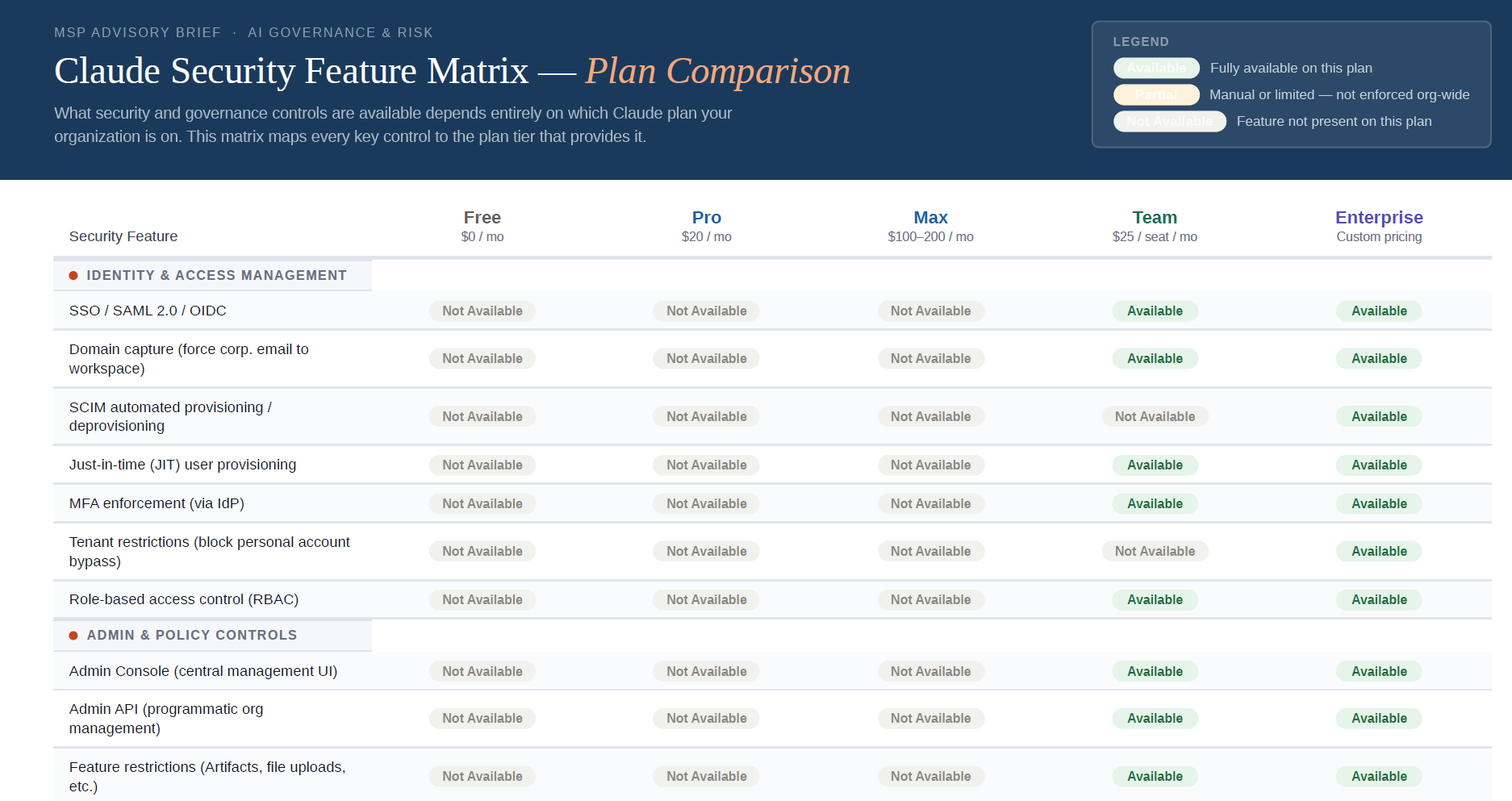
Claude security is a licensing question before it is a configuration question. The controls you can apply depend entirely on the plan your organization is on.
Free, Pro, and Max are personal account tiers. They are designed for individual use and offer no organizational governance. Team and Enterprise are the commercial plans built for business use, and they are where every meaningful security control lives.
The practical takeaway: if you identify a real business need for Claude, and you see a majority of your users already reaching for it, that is the signal to move to a paid commercial account and start layering in governance. If your organization is standardizing on a different tool such as Microsoft Copilot, that is where you focus your energy, and Claude becomes part of your shadow AI conversation instead. Check out my article on Shadow AI Detection to see how many users are leveraging Claude in your environment today.
Step 1: Establish a Commercial Account for Day-One Data Governance
This is the foundation, and the reason is data governance, not features.
On a personal plan, anyone can sign up with a work email or a Gmail account and immediately start chatting, connecting local files, and uploading client documents. There is no perimeter. Worse, when someone signs up on a personal Claude instance, the privacy setting that feeds conversations into Anthropic’s model training is enabled by default.
On Team and Enterprise plans, that training setting is locked off by default. The toggle is not even available to the end user, because organizational data is simply never used for training. That single difference is why moving clients onto a commercial account is the first move in any Claude security project.
Once the commercial account is live, you also gain access to organizational settings, the governance wrapper that controls access, features, and provisioning across every seat.
Pro Tip: Team plans start around $25 per seat per month. For most small and midsize clients, Team is the right entry point. Enterprise is the conversation for regulated industries that need SCIM, custom data retention, or compliance log exports.
Step 2: Verify Your Domain and Configure SSO
After the account is established, verify your domain and set up single sign-on. If you are a Microsoft 365 shop, you will tie this to Entra ID, but the same approach works with Okta or any other IdP.
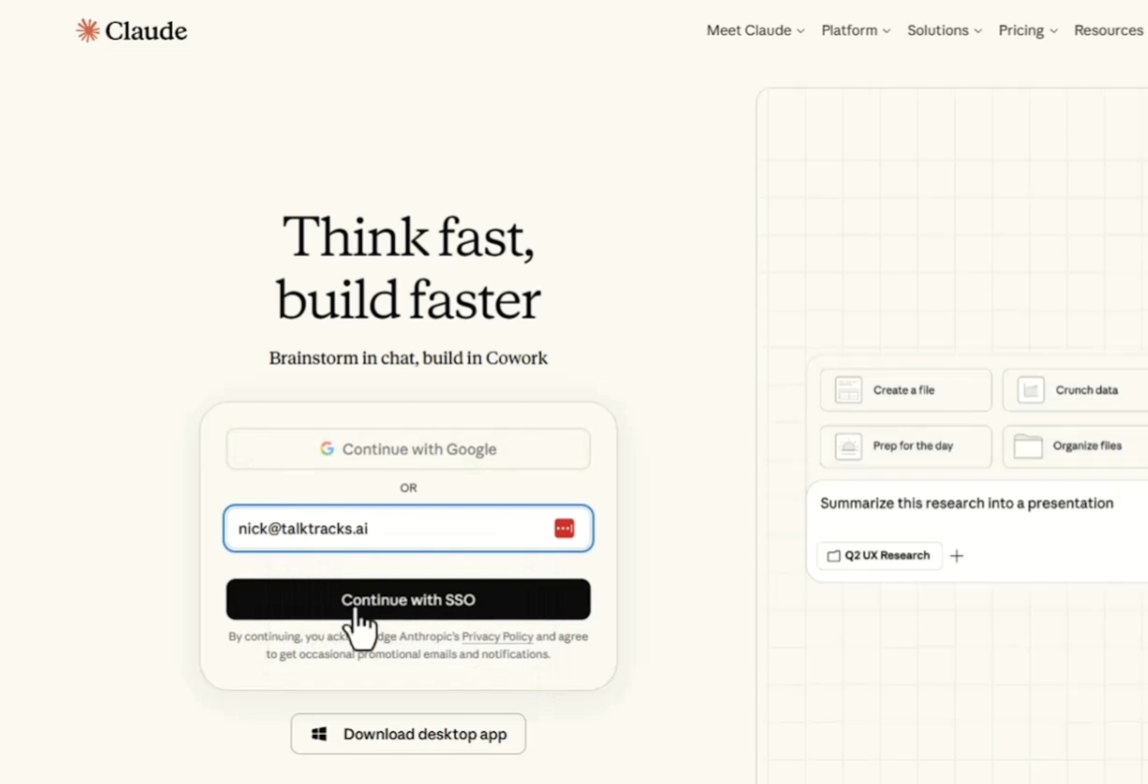
Domain verification and SSO do two things. They let your users sign in with their existing corporate credentials, and they stop someone from using their work email to spin up a personal Claude account outside your control. Once the domain is captured, a work email routes into your governed organization instead of the open web.
Inside the SSO settings you can also:
- Require SSO for Claude and Require SSO for the Console, enforcing authentication through your IdP
- Restrict organization creation, so personal orgs cannot be created under your domain
- Set provisioning to invite-only or just-in-time (JIT). Invite-only gives you explicit control over who gets access. JIT auto-provisions a user the first time they sign in with their SSO credentials.
With this in place, a user who tries to sign in without being assigned to the application is blocked and routed into a compliant approval channel, rather than slipping into a personal account with company data.
Step 3: Disable the High-Risk Claude Products
This is the step most teams skip, because they do not realize Claude is more than a chat box. Under organizational settings you will find a list of products that carry a much higher degree of risk. Until you have an approved, governed workflow for them, they should be off by default.
Claude Code. The agentic terminal and desktop tool for developers. If your team is not actively using it to develop, turn it off. Disabling it shrinks your attack surface, since a compromised account running Claude Code locally or in the browser is a serious exposure. Turning it off also disables related high-risk capabilities like remote control and routines.
Claude in Chrome. A browsing agent that performs autonomous workflows on websites. This one is high risk because of prompt injection attacks and JavaScript execution on web pages. Anthropic blocks sensitive sites like banking and crypto by default, but while the feature is in preview it is, in my opinion, too high risk for most businesses. If you must enable it, set it to block extensions and allow only approved websites.
Claude in Slack. Same principle. Enable only with a defined use case and approved workflow.
Cowork. A desktop agent that can manipulate your local file explorer, including deleting files, and run tasks in the background. Beyond the security footprint, autonomous background tasks can also rack up unexpected costs. High-risk settings like “act without asking” and “dispatch” are off by default for good reason. This is not something to include in a first wave of rollout.
Plugins and connectors. Set default access to “not available” and require an approval process before a new plugin or connector (a Box or Canva connection, for example) can touch company data.
You can also control whether Claude is available on web only or on the desktop app. A web-only posture, paired with Microsoft conditional access policies, gives you tighter, more granular control over how and where users connect.
Pro Tip: One more thing on Cowork. Its activity is currently excluded from Anthropic’s native audit logging and compliance export across all plan tiers, including Enterprise. If compliance visibility matters for a client, settle that before enabling it.
Step 4: Govern the Console and Secure API Usage
The last layer is Claude Console, tied to your organizational account and used when teams call Claude over the API with API keys. This is more developer focused, but it is increasingly relevant as organizations stand up managed agents.
Two priorities here.
Isolate your workspaces. Separate development and production into distinct workspaces so keys are scoped to the right environment. Workspaces also let you set billing and spend limits. This matters because a compromised API key is not just a data risk. It is a billing risk. The same way a stolen cloud credential can be used to spin up a crypto-mining VM farm, a leaked Claude key can run up a massive bill before anyone notices. Note that workspace region matters too: if you operate in the EU, US is the default and an EU workspace currently requires a separate process.
Manage your API keys. Store keys in a secure vault such as Azure Key Vault or AWS Secrets Manager, and rotate them on a schedule. This is critical because, at the time of writing, Claude API keys do not expire on their own. Key management may be new territory for businesses that never had an API use case before, so build the rotation discipline in early.
Find the Shadow AI Before You Govern It
You cannot govern what you cannot see. Before you decide which AI tools to standardize on, you need visibility into what your users are already running.
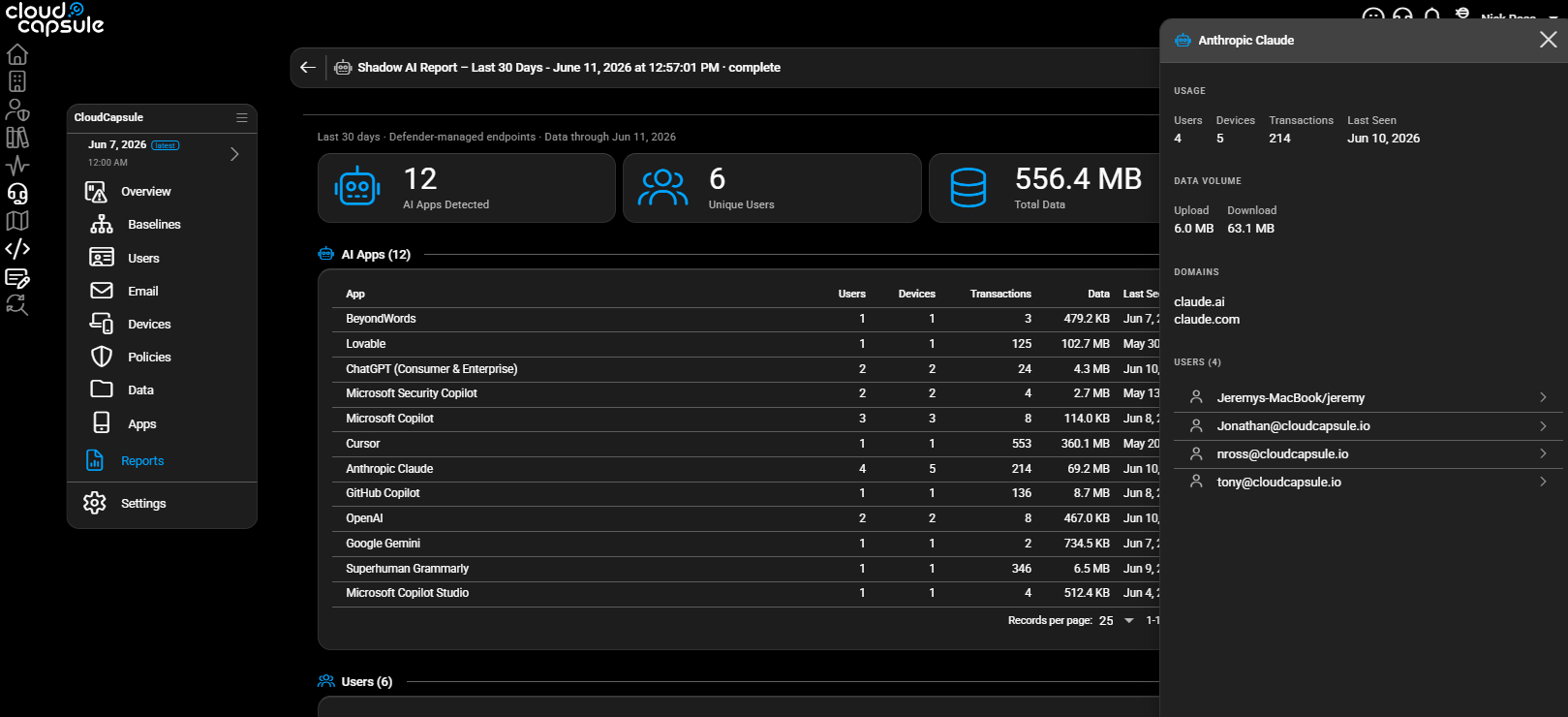
If you manage Microsoft 365 environments, CloudCapsule runs a rapid assessment against your tenant for a range of security risks, each with clear remediation guidance. The recent Shadow AI report analyzes shadow IT across browsers and workstations, surfacing exactly which users are leveraging tools like Claude and what individual AI tools they have in use. That is the starting point for deciding what to govern, what to adopt, and what to block.
Get the Full Hardening Guide
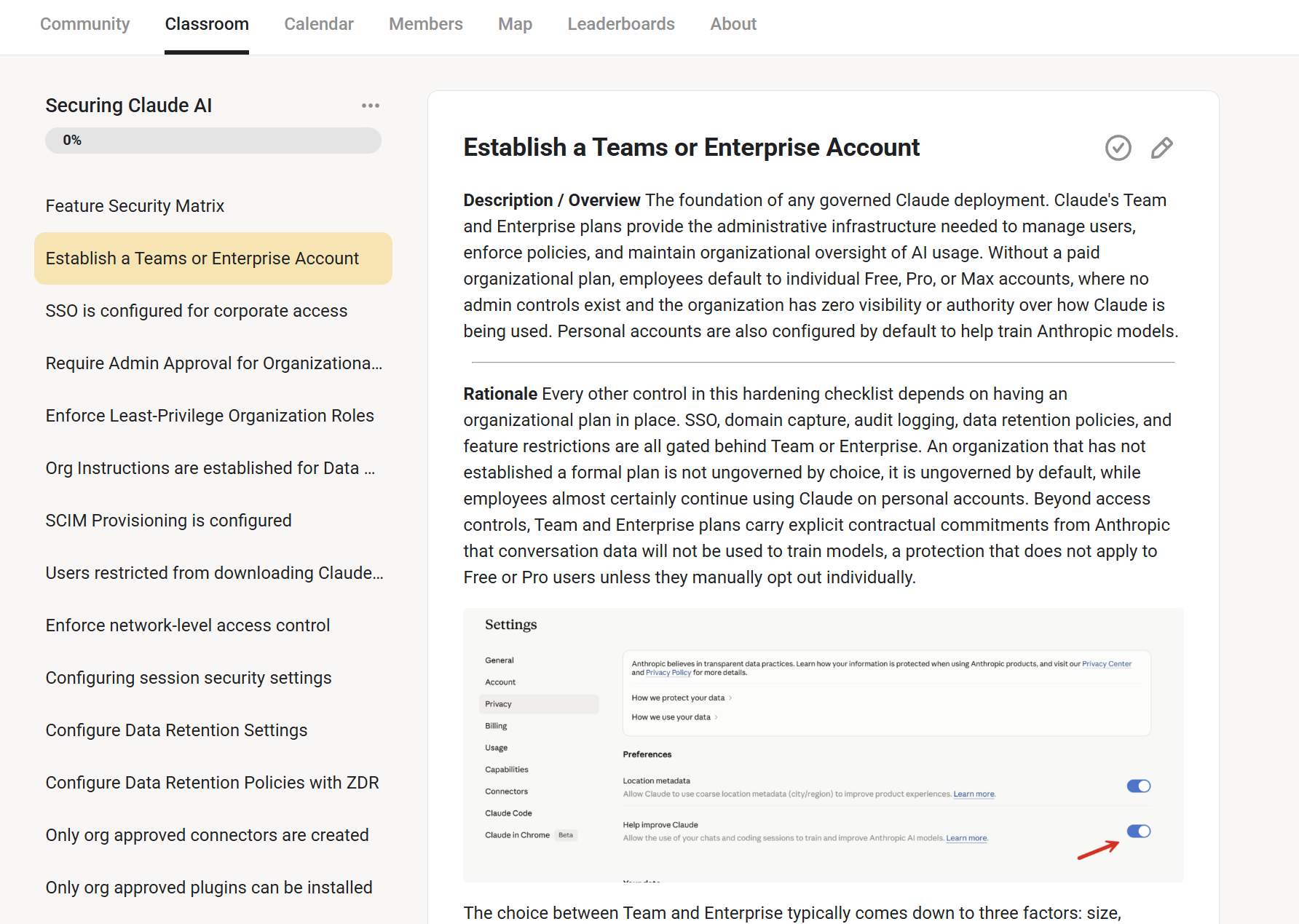
I’ve been linking these articles above but I have developed an entire hardening guide for Claude that you can get for free in my free Skool community. This is a list of over 30 controls you can leverage to lock down your environment.