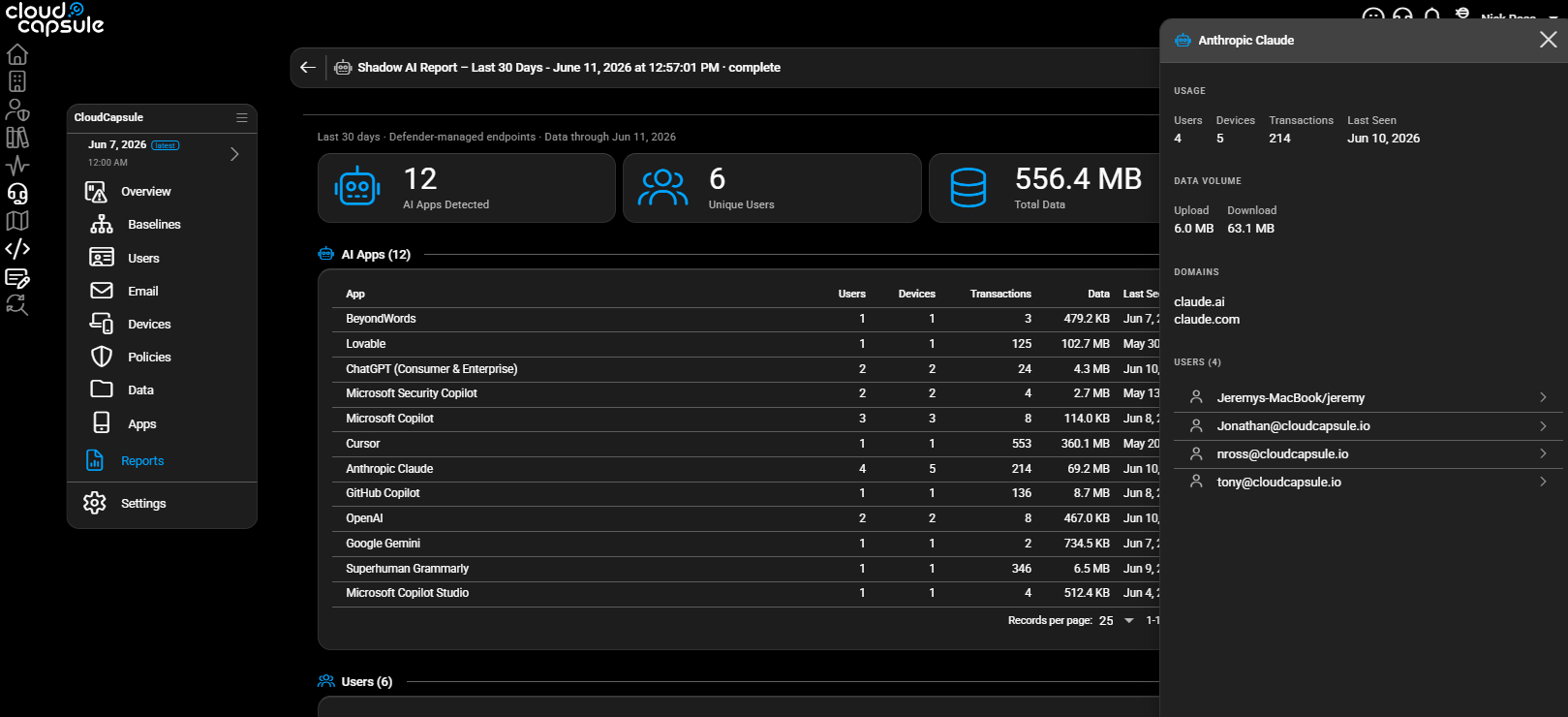

Right now, someone in your organization is copying client data into a free Claude account.
Maybe it’s a technician summarizing a ticket. Maybe it’s a manager drafting a proposal. Maybe it’s an employee who discovered Claude on their own, started using it immediately, and never once thought to ask: where does this data actually go?
Claude is one of the most capable AI tools available right now. MSPs are using it. IT admins are using it. The end users you manage are absolutely using it. The question is not whether it is in your environment. It already is. The question is whether you are governing it.
This post covers four things: what is likely already happening in your tenant today, what security controls you actually get across different Claude plans, how to connect Claude to Microsoft 365 properly as an admin, and what it means that Anthropic models are now available inside Microsoft 365 Copilot.
What Is Already Happening in Your Tenant
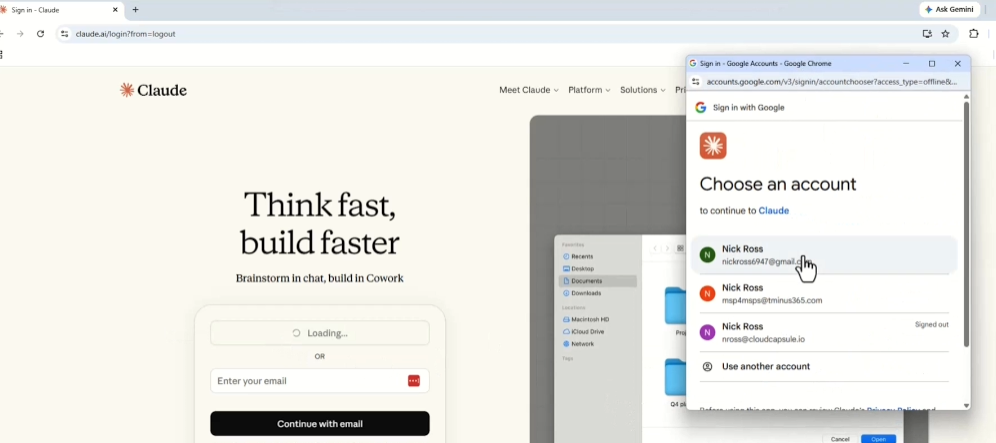
The typical pattern looks like this: a user goes to claude.ai, signs in with a personal Gmail address, accepts the terms, and starts using the free plan. They are not doing this maliciously. They see the hype, they try it out, and within minutes they are pasting in company information, attaching files from their locally synced OneDrive, and uploading client documents without a second thought.
Here is the part that matters from a compliance standpoint. On a free or personal paid plan (Pro or Max), Claude’s privacy settings default to allowing your conversations to be used to train Anthropic’s AI models. Under the September 2025 consumer terms update, that data retention window extends to five years if users opted in, which many did by simply clicking through the prompt without adjusting the toggle.
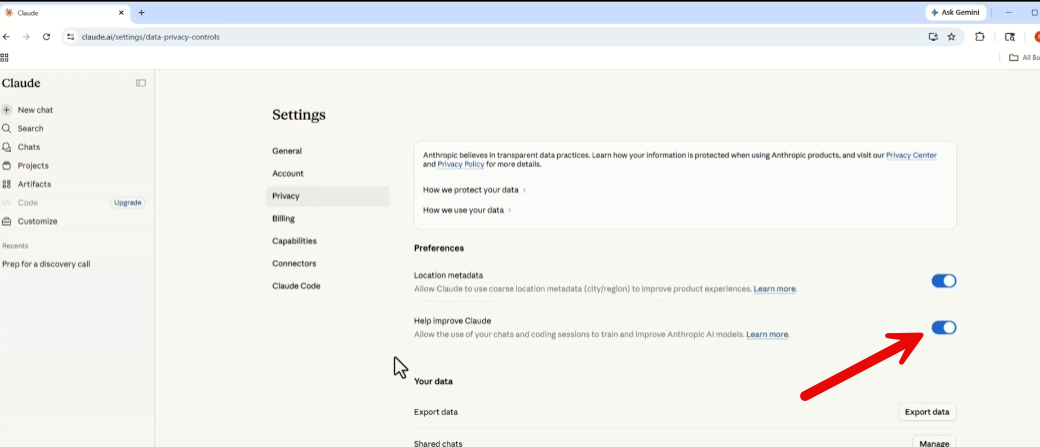
That is not a theoretical risk. That is a live data governance gap in most organizations today.
The Connector Risk
Beyond direct data uploads, there is a second exposure point worth understanding. Inside Claude, users can click the plus button in a new chat and add connectors, including a Microsoft 365 connector. On a personal account, a single user can initiate this connection without any admin approval, as long as your Microsoft Entra settings allow user consent.
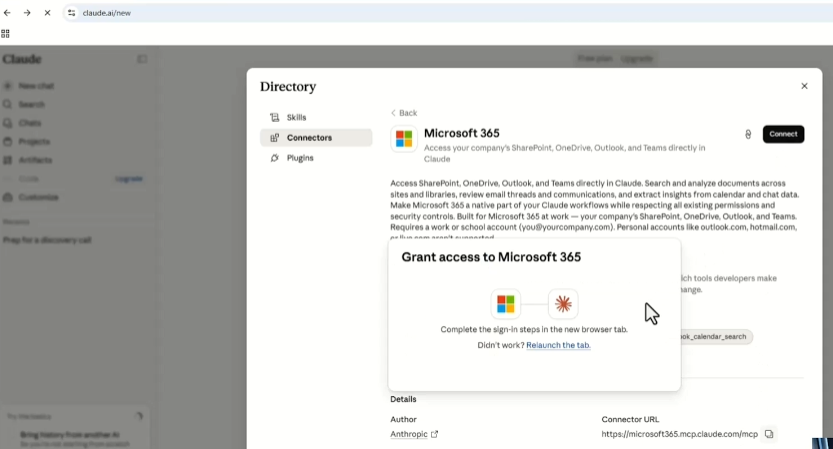
Once connected, Claude gets delegated read access to that user’s Outlook, SharePoint, OneDrive, and Teams data via the Microsoft Graph API. If you have not configured Entra to require admin approval for third-party app consent, that app registration is quietly created in your directory.
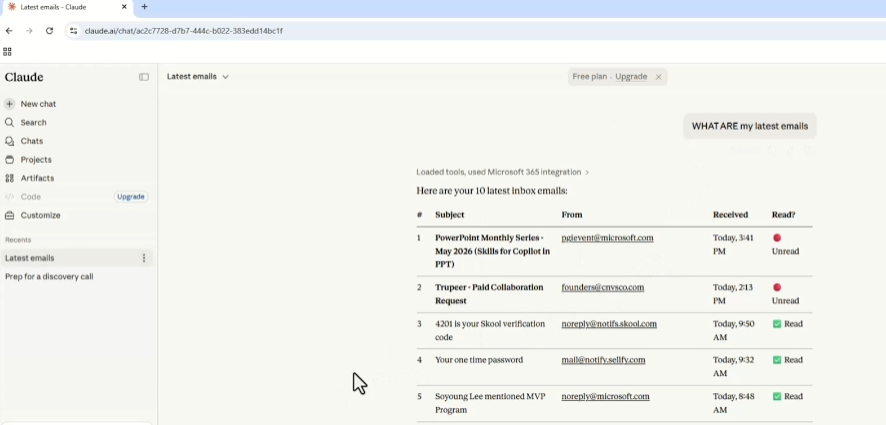
To check your environment right now: open Microsoft Entra, go to Enterprise Applications, and search for “Claude” or “MCP.” If you find entries there and your user consent settings are not locked down, personal accounts have already registered the connector.
The Office Extension
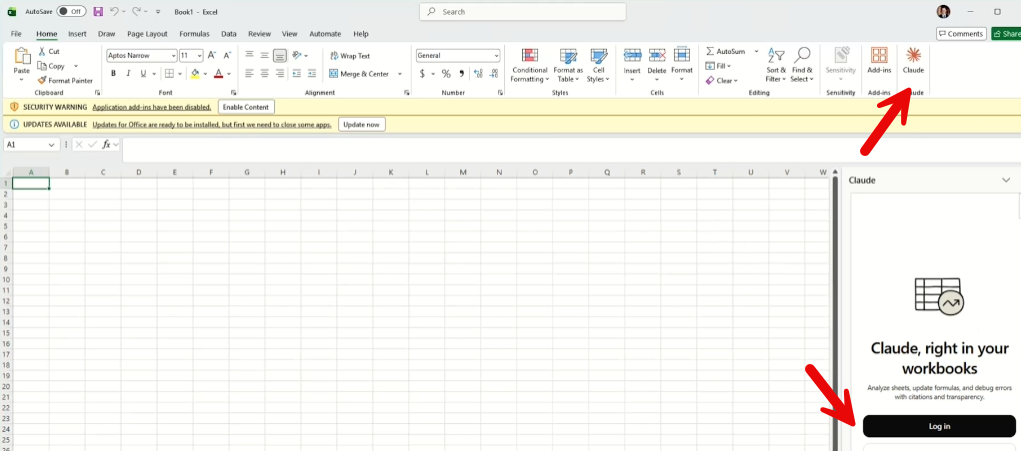
There is one more surface area to be aware of. Users on a paid personal Claude plan can install a Microsoft 365 Office extension directly within Claude. This does not require running an executable, so it will not be caught by typical software installation controls. It simply adds Claude as an extension inside Excel, giving it access to the data users are actively working with.
Understanding the Plan Security Tiers
I built a security feature matrix that breaks down what security you have access to by plan.
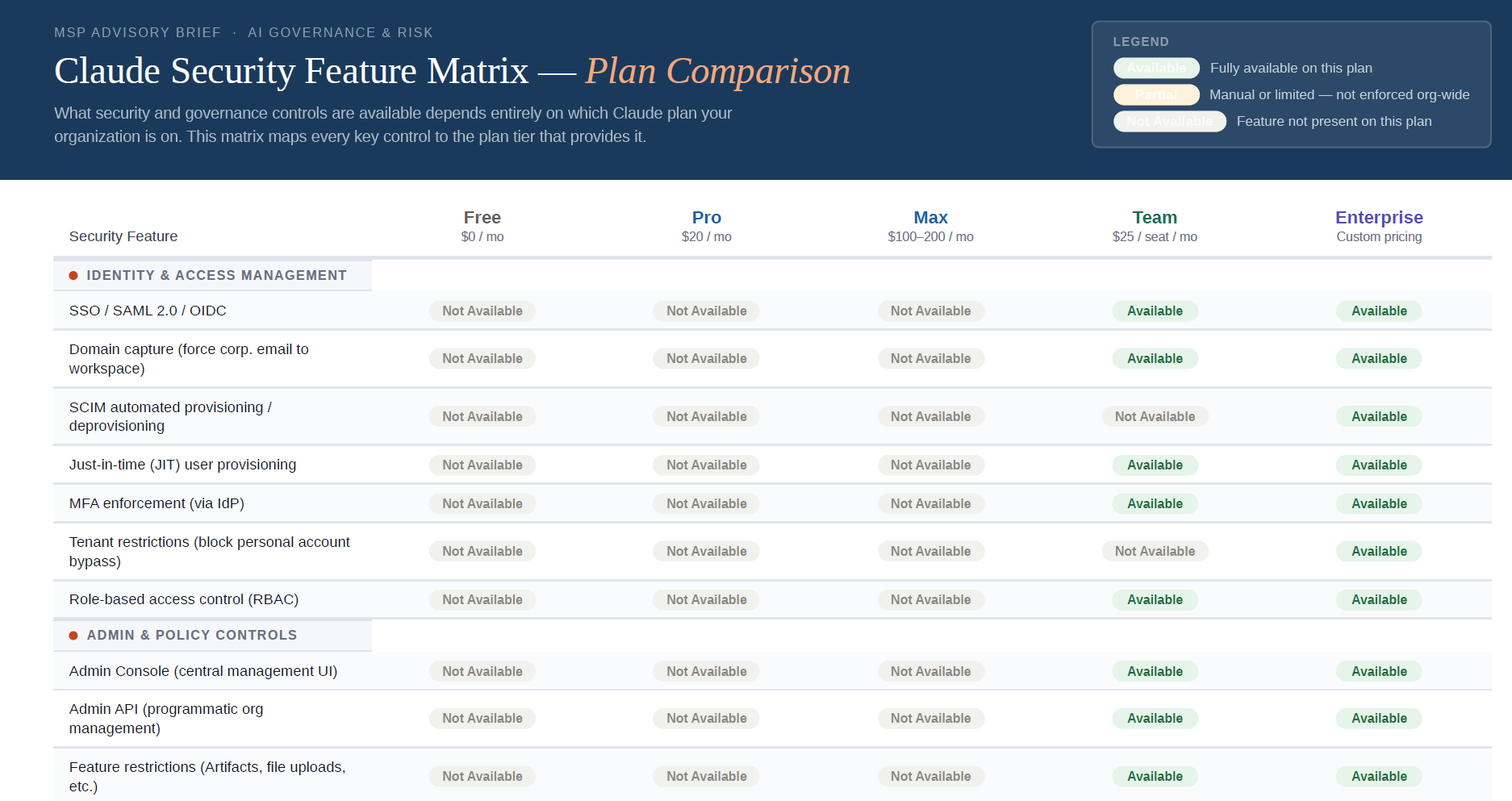
Not all Claude plans carry the same data protections. Here is how they break down.
Consumer Plans: Free, Pro, and Max
These plans are governed by Anthropic’s consumer terms. The September 2025 update introduced an opt-in data training toggle, but the default UI presented a large Accept button with the toggle pre-set to on. Many users accepted without adjusting it.
Key characteristics:
- Data can be used to train Anthropic models if the user consented (or never opted out)
- Retention up to five years for users who opted in, 30 days for those who opted out
- No admin controls over connectors or data access
- No organizational visibility or audit logging
- Not suitable for use with corporate or client data
Commercial Plans: Teams and Enterprise
Once you move to a Teams or Enterprise plan, you are under Anthropic’s commercial terms. The data training toggle does not exist at this tier because it is simply not applicable. Your data is never used to train models, full stop.
The Teams plan adds:
- Admin connector controls (enable or restrict the M365 connector for your org)
- Usage dashboard for organizational visibility
- The ability to require admin approval before users can connect third-party tools
- SSO support and domain verification
The Enterprise plan extends this further with SCIM provisioning, the Compliance API for exporting conversation logs into your SIEM, Zero Data Retention mode available on request, a Data Processing Agreement, and HIPAA BAA eligibility. It is also SOC 2 Type II and ISO 27001 certified.
For any client handling real business data, the Teams plan is the minimum viable starting point.
Setting Up the M365 Connector Properly as an Admin
Once you are on a Teams or Enterprise plan, here is how to connect Microsoft 365 correctly through the admin path.
Step 1: Enable the connector at the org level
Log into Claude with an Owner account. Go to Organization Settings, then Connectors. Click Add, find Microsoft 365, and click “Add to your team.” This makes the connector available for your users but does not automatically connect anyone.
Step 2: Grant Microsoft Entra admin consent
Before any user can connect, a Microsoft Entra Global Administrator must grant tenant-wide consent. This is a one-time step. When you proceed through the connector setup, you will be redirected to the Microsoft consent screen showing the permissions being requested.
The permissions list can look alarming at first glance. Sites.Read.All sounds like Claude can read your entire SharePoint environment. It cannot. These are delegated permissions, which means Claude operates as the individual user. It can only access what that specific user already has access to. Your existing SharePoint permissions, sensitivity labels, and folder-level sharing settings are all respected.
Step 3: Review per-connector settings
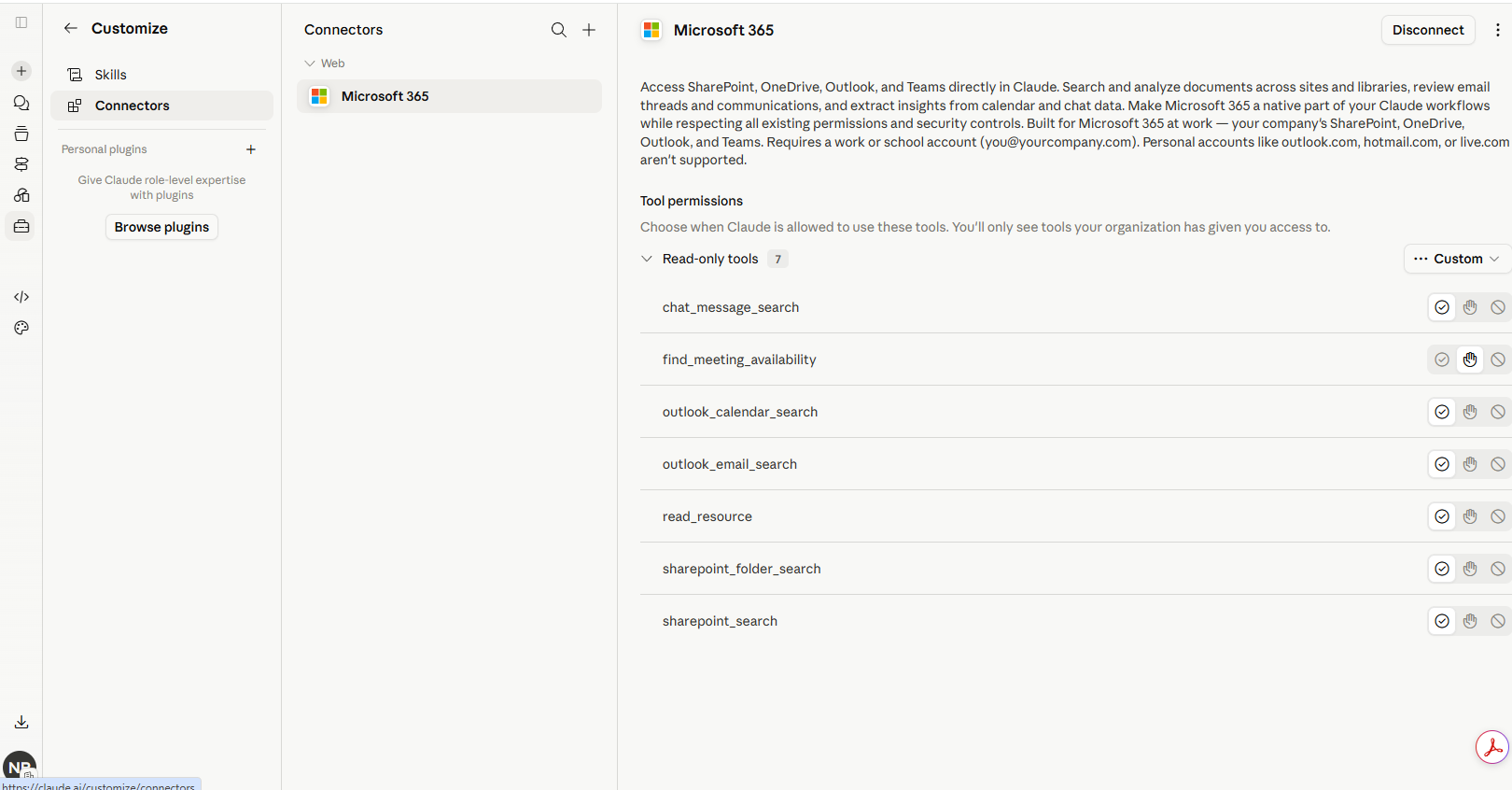
After consent is granted, you can configure settings per tool within the connector. You can set individual capabilities like SharePoint search, email access, and Teams chat search to require user approval, be blocked by default, or be allowed by default. This gives you fine-grained control over what users can actually do through the connector.
Claude Models Inside Microsoft 365 Copilot
This one has flown under the radar for many IT admins: since January 2026, Anthropic is officially a Microsoft subprocessor, meaning Claude models are now available inside Microsoft 365 Copilot.
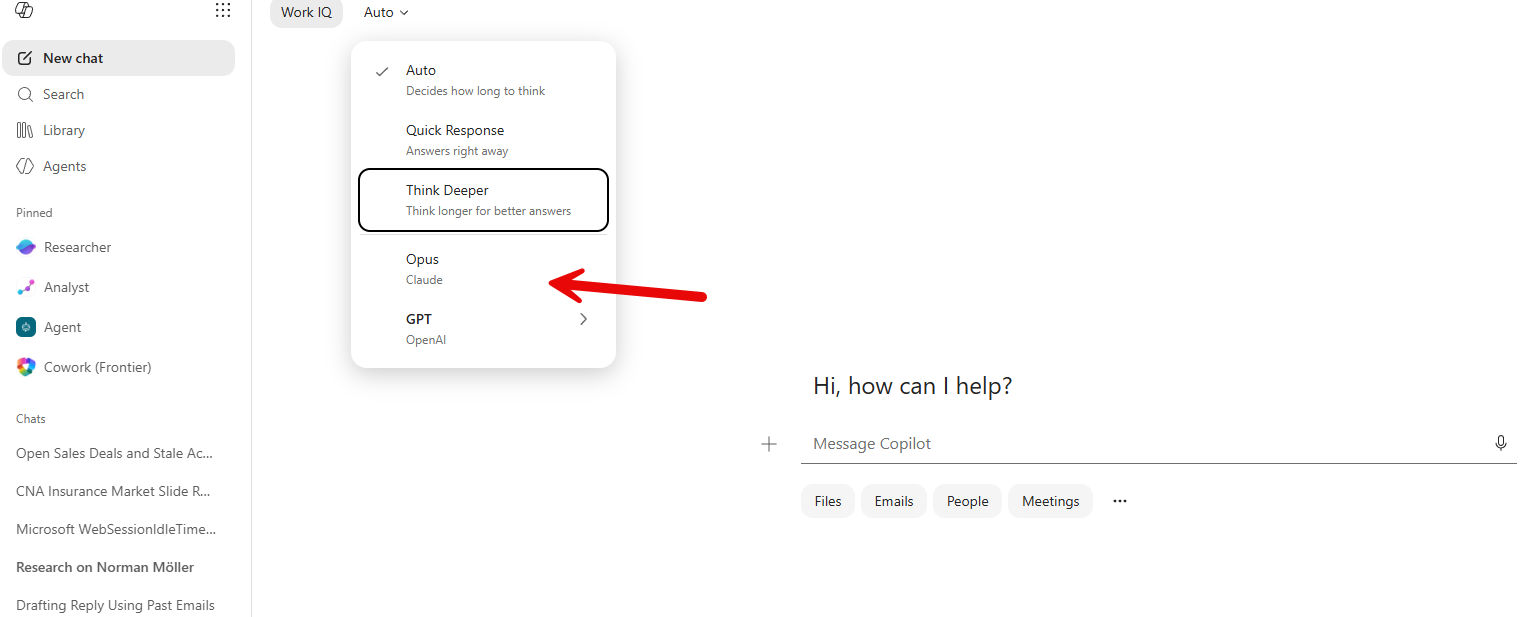
This is separate from the Claude standalone connector. This is Anthropic models running within the Copilot interface itself.
Where you can access them:
- Copilot Cowork: Available in the frontier program
- Researcher agent: You can select Claude Opus 4.1 as the model for deep reasoning tasks instead of the default OpenAI model
- Copilot Studio: When building custom agents, you can choose Claude Sonnet 4 or Opus 4.1 from the model dropdown
- Agent Mode in Excel: Claude Opus 4.5 is available for web-based Agent Mode
What this means for security
When Anthropic operates as a Microsoft subprocessor, your data is governed by Microsoft’s Data Processing Addendum rather than Anthropic’s consumer terms. Anthropic does not train on your M365 data in this configuration.
There is an important caveat. Anthropic’s models run outside of Microsoft’s Azure boundary, on AWS or GCP infrastructure primarily located in the United States. Data is transferred out of Azure for processing. Microsoft explicitly states that data processed by Anthropic falls outside Microsoft’s data-residency commitments and audit controls.
For organizations with strict GDPR requirements or data residency mandates, this matters. If that applies to any of your clients, the recommendation is to disable Anthropic in the admin center until those questions are answered.
Key Takeaways
Free, Pro, and Max plans carry real data risk. The September 2025 terms update defaulted users toward data training opt-in. If your clients’ employees are using personal accounts with corporate data, that is a current exposure, not a future one.
Teams plan is the minimum commercial floor. No data training, admin connector controls, usage visibility. This is the starting point for any client using Claude with business data.
The M365 connector requires a two-step admin process. On personal accounts, any user can self-authorize the connector with no IT visibility. On Teams and Enterprise, an org Owner enables it and a Global Admin consents. Only then can users connect.
Check Entra for unauthorized app registrations right now. If your Entra settings allow user consent, search for “Claude” or “MCP” in Enterprise Applications. You may find existing registrations you did not know about.
US commercial Copilot tenants already have Anthropic models enabled. Check your admin center. EU, UK, and EFTA organizations need to opt in. If data residency is a concern for any client, consider disabling Anthropic until your compliance team has reviewed it.
Get Visibility Into What AI Tools Are Already in Your Tenants
If you are managing multiple Microsoft 365 tenants and want to see what AI tools are already active, what users are connecting, and where your governance gaps are, that is exactly what we built CloudCapsule for.
CloudCapsule runs a rapid security assessment against Microsoft 365 and includes a Shadow AI report that shows you which AI tools users are accessing today, broken down by user. You can see Claude, GPT, Gemini, and others, along with the individual users leveraging each tool.