

You just wrapped a sales call. It went well, at least, you think it did. You remember a few key points. They mentioned a competitor, maybe. Budget sounded promising. But it’s 4:30 PM, your notes are scattered, and updating the CRM feels like a second job.
Here’s the thing: your Teams meeting already captured everything. Copilot was in that call and with the right custom prompt, it can hand you a structured sales brief the moment the recording ends.
In this guide, we’ll show you how to move beyond Copilot’s default meeting summary and build a reusable custom prompt that extracts exactly what your sales team needs to close deals.
The Gap in Your Default Recaps
Meet Alex, an account executive running 6 to 8 Teams meetings a day. Discovery calls. Demos. Follow-ups. Every conversation carries intelligence that could drive the deal forward:
- Who the real decision maker is
- Which competitors came up in conversation
- Whether the deal feels real or quietly at risk
Most of that intel lives in Alex’s head and disappears before the next meeting starts.
Copilot’s default meeting summary is useful, it captures a general overview and some follow-up tasks. But it’s a generic template applied to every meeting, regardless of context. For a sales team, that’s not enough.
Execution Phase: Building Your Custom Sales Prompt
Step 1: Access the Custom Summary Feature
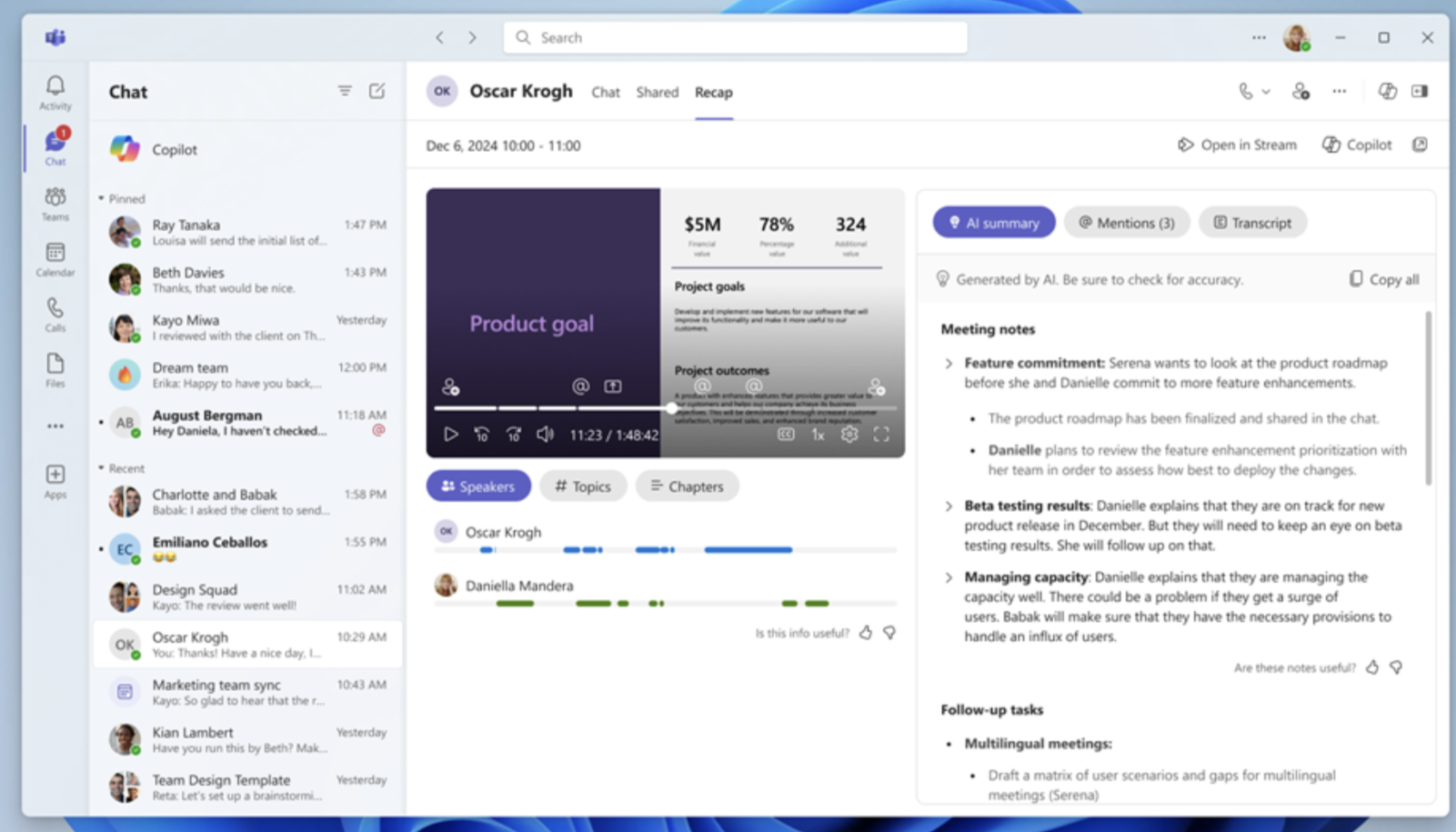
With Teams Premium or Microsoft 365 Copilot, open any recorded and transcribed meeting recap and navigate to the Custom Summary tab. This is where you can paste or build your own prompt instead of relying on the default template.
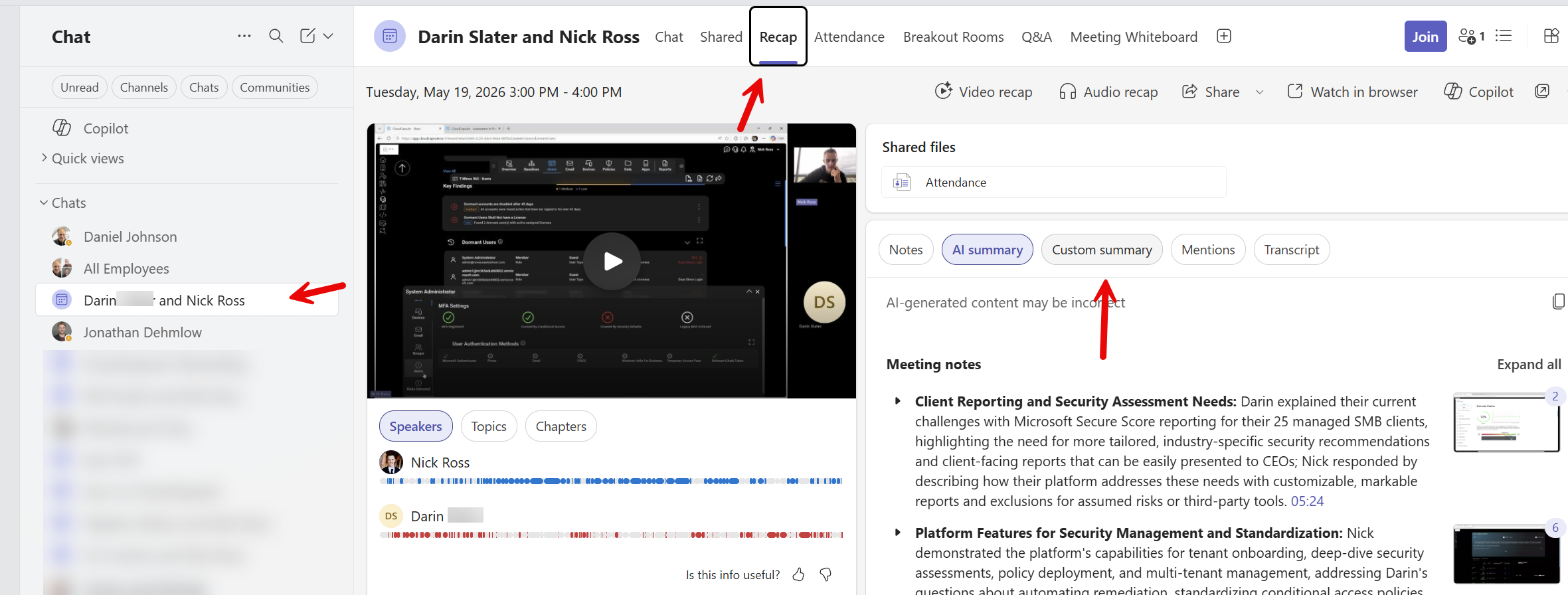
1. Click into a meeting you had with a recording
2. Click on Recap>Custom Summary
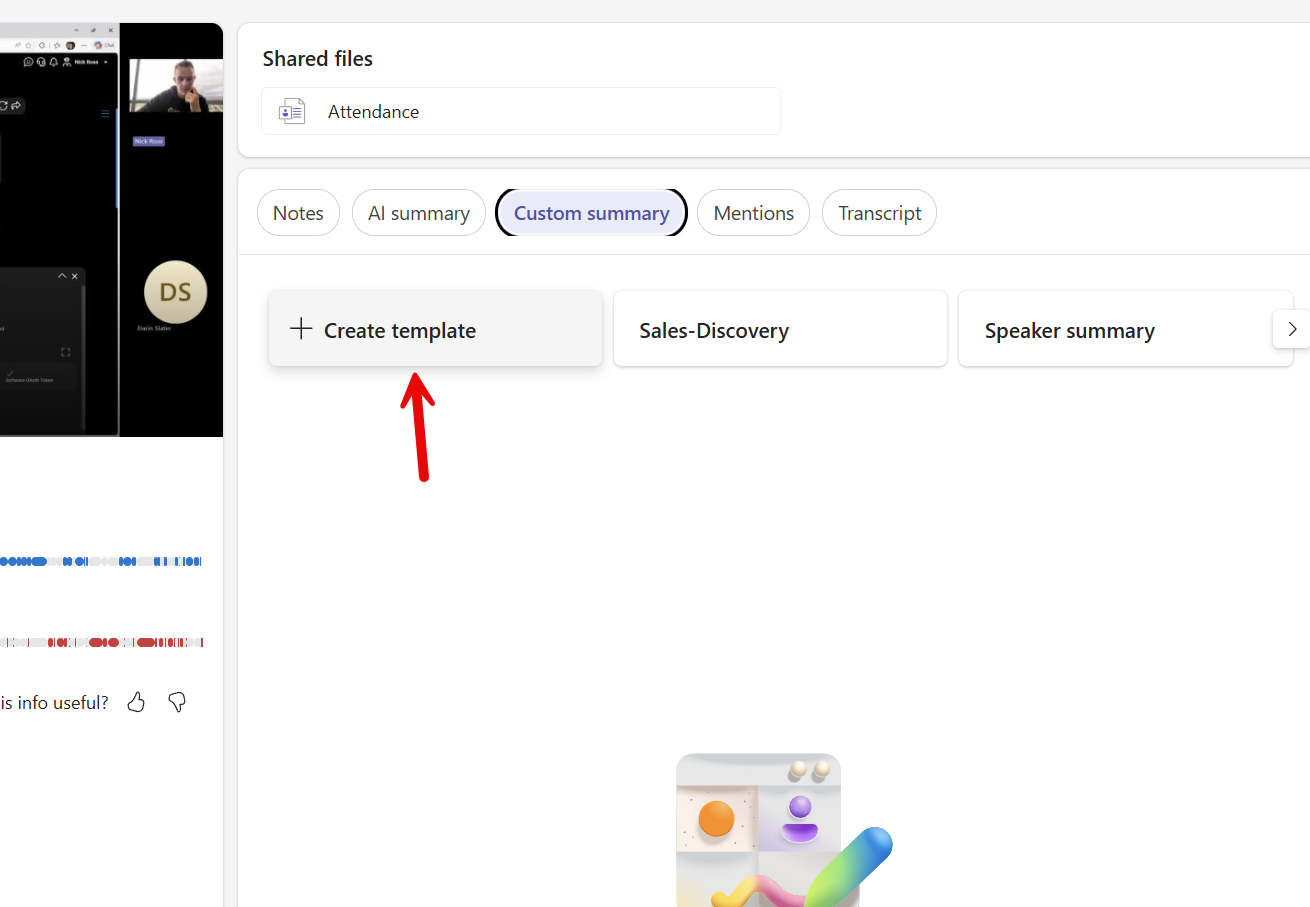
3. Here click on + Create Template
Step 2: Start With a Basic Prompt
A simple starting point looks like this:
You are a sales leader reviewing this meeting. Extract: top insights, company profile, competitors mentioned, deal risks/objections, and a confidence-based win rate with a closing action plan.
Copilot will format each section automatically and pull from the actual transcript. No manual note-taking required.
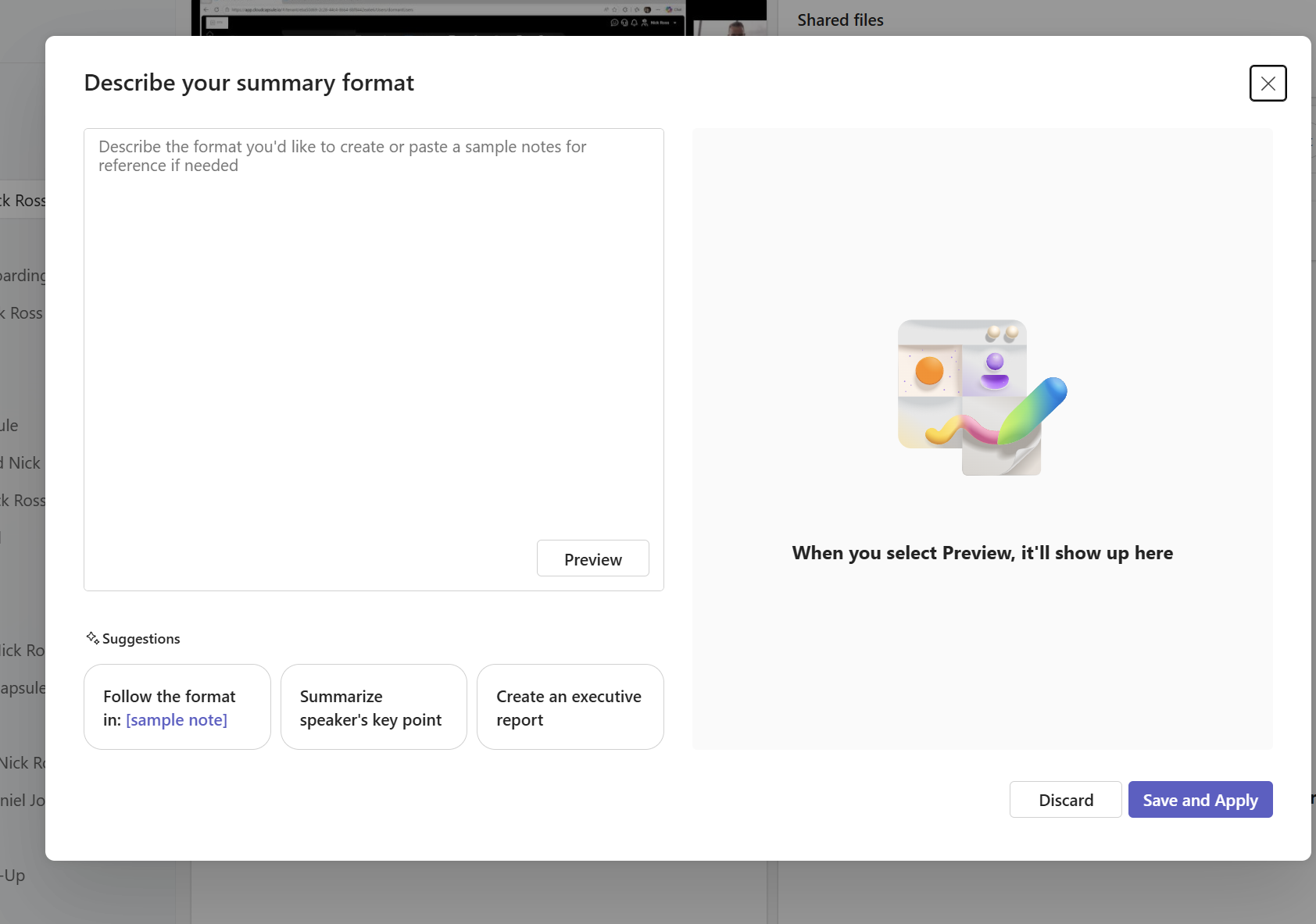
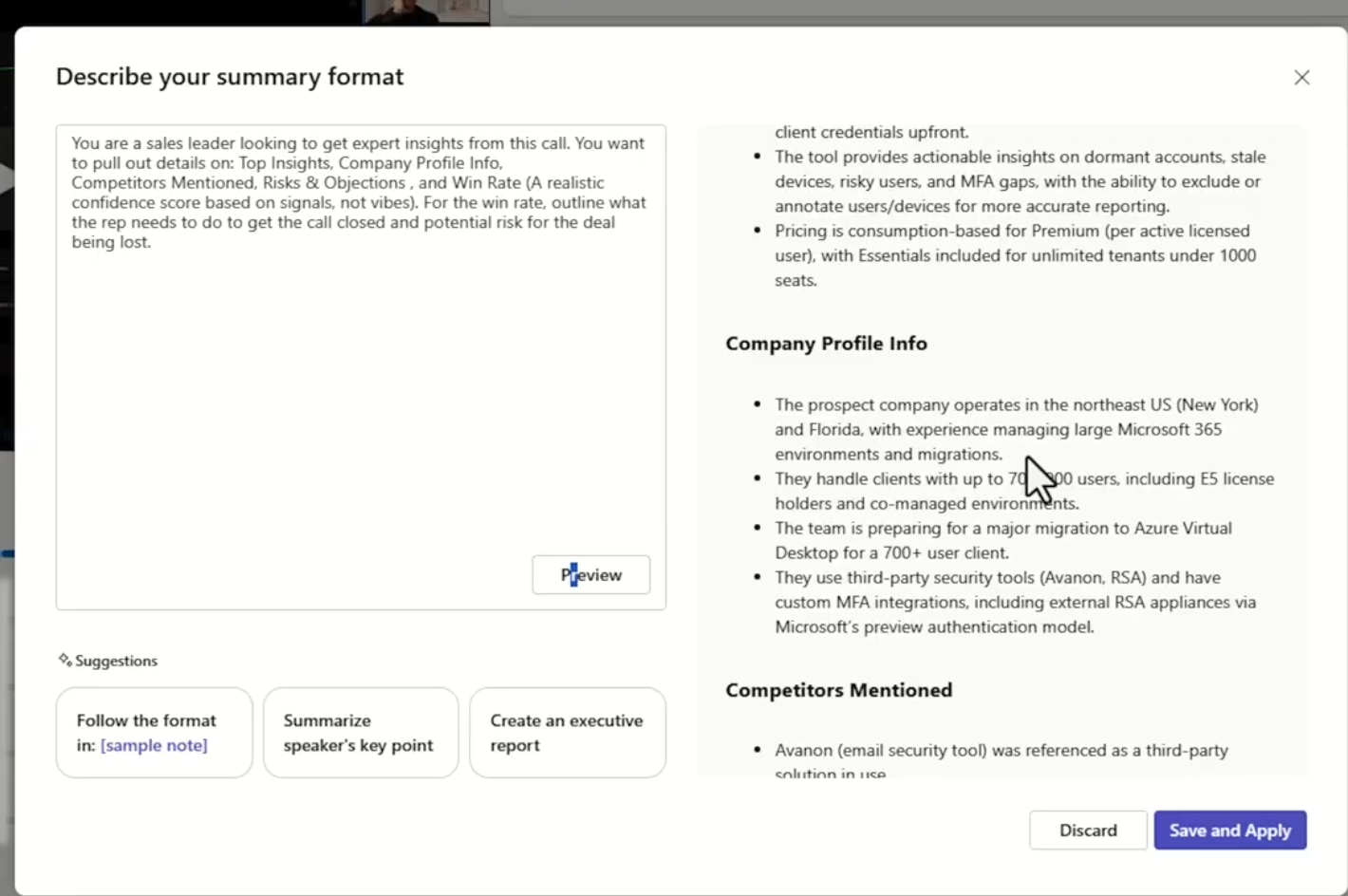
Clicking on Preview will show you a sample output:
Step 3: Add Specificity for Better Output
The more context you provide, the sharper the results. You can instruct Copilot to:
- Extract specific company profile fields: team size, location, number of customers under management, tools currently in use
- Focus competitor mentions only on direct competitors — not internal tools they reference
- Return a numerical win rate with justification based on signals from the transcript, not assumptions
Example Prompt:
You are a sales leader looking to get expert insights from this call. You want to pull out details on:
Top Insights -Keep these to concise bullets
Company Profile Info Include: Team Size, Location, Users/Customers under management, and how they heard about us
Competitors Mentioned -Make sure you focus on competitors they mention directly to CloudCapsule, not tools they use internally.
Risks & Objections -Highlight deal risk and concise bullets on top objects.
Win Rate (A realistic confidence score based on signals, not vibes). For the win rate, outline what the rep needs to do to get the call closed and potential risk for the deal being lost. You should be more pessimistic here.
Plan to test your prompt across 5 to 10 different calls before finalizing it. Gaps and false positives will surface quickly, and a few iterations will tighten up the output significantly.
Step 4: Save and Apply
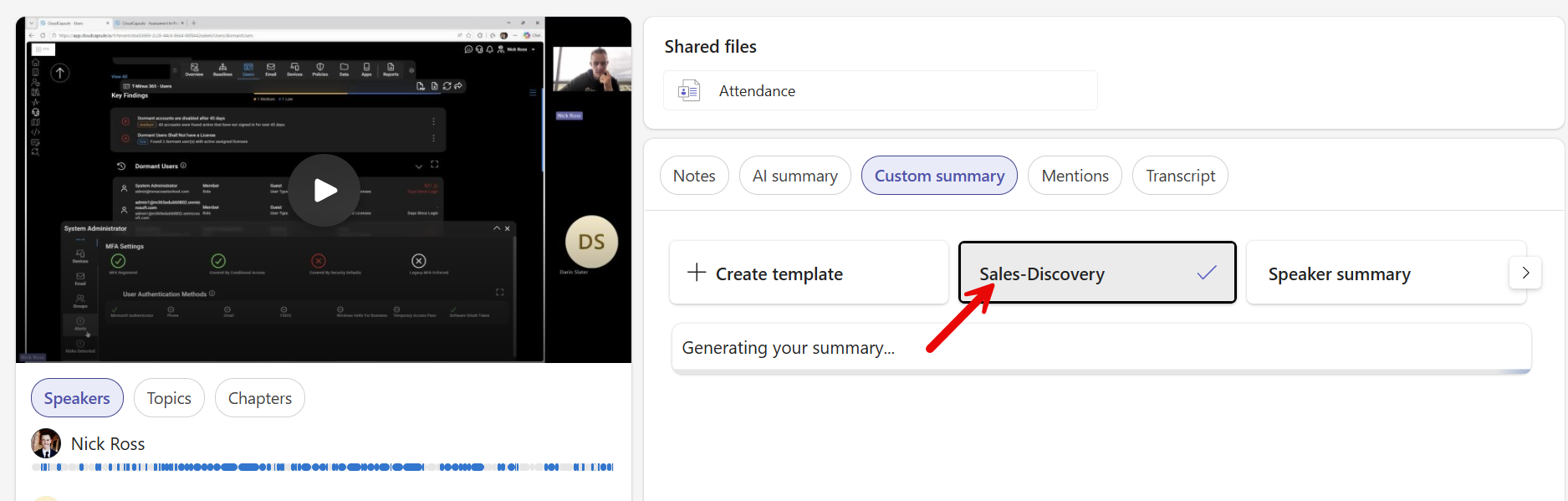
Once you’re satisfied, click Save and Apply and give your template a name, something like “Sales Discovery” or “Deal Review.” It will appear as a persistent tab inside your meeting recap view, ready to use on any future call automatically.
Field Notes: What to Watch For
A few things worth knowing before you roll this out:
- The meeting must be recorded and transcribed for Copilot to generate any summary, default or custom.
- Win rate outputs work best when you explicitly tell Copilot to be pessimistic and signal-based, vague prompts produce vague confidence scores.
- Custom summaries are reusable across meetings. Currently, they are only able to be saved on an individual use basis. You cannot create a custom prompt that the entire org can see/leverage.
Recap
Back to Alex. Instead of spending 20 minutes writing call notes, Alex ends the meeting, opens the recap, and has a structured brief waiting. Company profile, deal risks, competitor flags, and a confidence-based closing plan. It drops straight into the CRM. The follow-up email practically writes itself.
That’s not just a time save. That’s a structural advantage in every deal cycle.