

- Understanding how Microsoft detects risky users and sign-ins
- How to set up alerts to go to your PSA or Ticketing System
- The top policy I would put into place to prevent user compromise
Understanding how Microsoft detects risky users and sign-ins
Microsoft is watching for signs that something might be wrong with a user’s account. They check billions of logins every day to look for danger.
This danger could come from things like:
Bad guys using stolen passwords
A login coming from a place that doesn’t make sense
Someone using a fake Microsoft page to trick a user
Microsoft uses machine learning to look at things like:
Where the person is logging in from
What kind of device or browser they are using
If they’ve done this before or if it looks strange
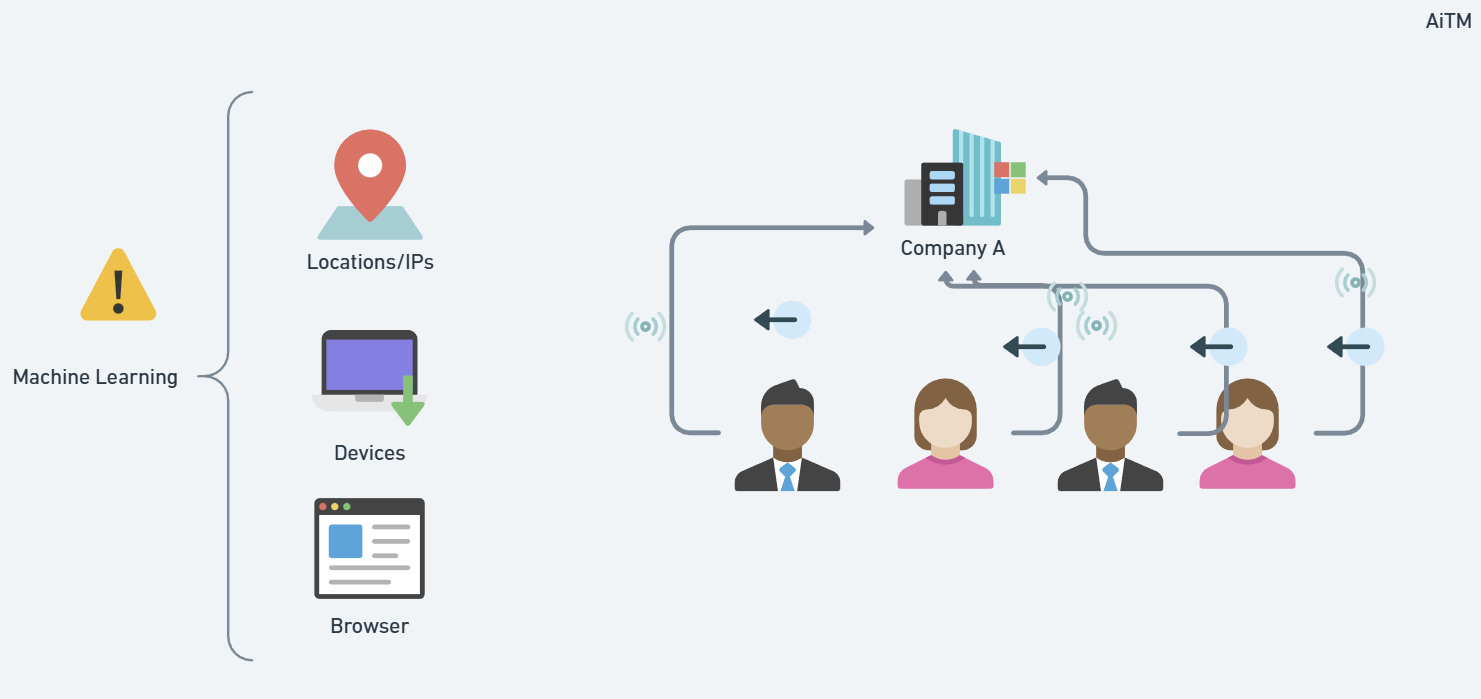
How Microsoft Decides Risk: Low, Medium, or High

A Real Breach Example
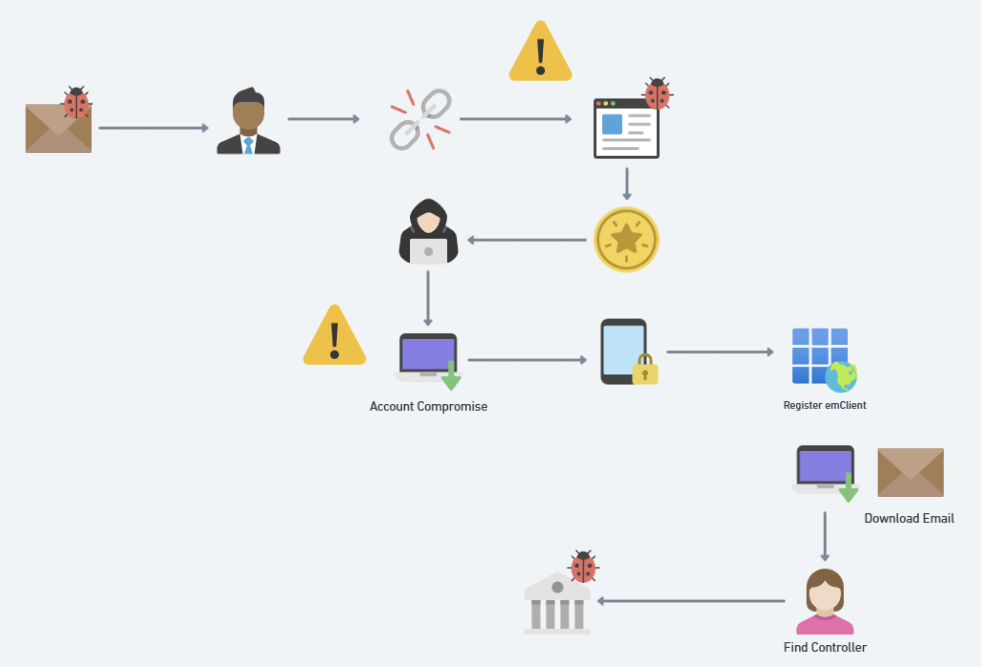
A company got tricked and lost $500,000.
Here’s how it happened:
The CEO got a phishing email — a fake message that looked real.
The email had a link to a fake Microsoft page.
The CEO entered their username, password, and MFA code.
The bad guy used this to steal their token (this is called token theft).
Now the attacker:
Logged into the account
Set up inbox rules to hide what they were doing
Added a sneaky app called eM Client to download all the emails
Registered their own MFA so they could stay in the account
Found the person who handles money and pretended to be a vendor
Said: “Hey, our bank info has changed. Send money here.”
And just like that, $500,000 was gone.
Set up Alerts to PSA
- In the Defender Admin Center, go to Settings>Microsoft Defender XDR
- Click on email settings. Modify the existing rule or create a new rule
Update your notification and rules to ensure the tenant name is attached and the services for alerts are detected. The alert severity is tough given that including low and informational will generate a ton of noise but alerts like the creation of an inbox rules by default are informational. To overcome this, you can go to Email and Collaboration>Policies and Rules>Alert Policies and create your own rules that follow a higher severity.

4. On the recipients page, add you email connector for your PSA.
The Microsoft Paywall Problem (MPP)
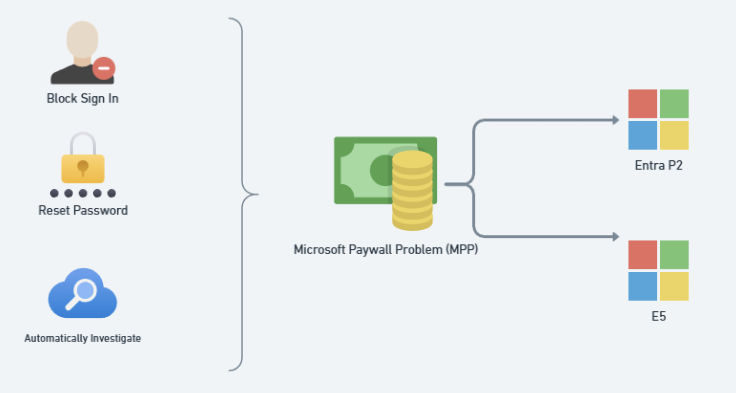
What action is taken by default even if the user is detected with high risk? In most cases (especially if you are just on licensing like Business Premium)…nothing. Thats right. The user will be detected and the rest of the compromise will play out.
If you do have E2 or E5 (or the E5 add-on that can be bolted on to business plans) you can configure the following:
- Require a user reset their password with Medium to High Risk AND/OR
- Block the user account with High Risk
- This one is tricky given if its a false positive and you lock an executive out because they are traveling overseas on a business trip, you better have a way to quickly respond. I think it better to be over protective here but at minimum you should enforce the password resets.
- Automated Attack Disruption
- P2 Risk Detections: What are risks in Microsoft Entra ID Protection – Microsoft Entra ID Protection | Microsoft Learn
- Investigate Risky Users: Investigate risk Microsoft Entra ID Protection – Microsoft Entra ID Protection | Microsoft Learn
The top policy I would put into place to prevent user compromise
Prerequisites:
- Devices are Entra Joined, Hybrid Joined, or Entra Registered
Conditional Access Policy Settings
- Users> Include All Users
- Users>Exclude Break Glass account + Guest or external users > Service provider users
- Target Resources > All
- Conditions > Device Platforms > Windows
If Hybrid:
- Grant> Grant Access > Require Microsoft Entra hybrid joined device
If Cloud Only:
- Conditions > Filter for Devices > Exclude>Trust Type>Entra Joined
- Grant > Block

Final Takeaway
Risky Users in Microsoft 365 aren’t just a dashboard — they’re your early warning system. Configure these alerts for your security team to review and consider placing more advanced protections in place.